To properly display this page you need a browser with JavaScript support.
Record creation
Was the record created manually or did the employee use a clock to capture piece work.
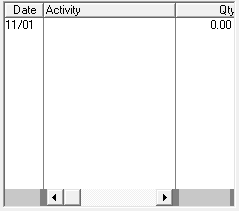
Recent activity records
Previous (recent) piece work entries can be seen here. This helps to prevent you from capturing the same record twice.
Employee
The applicable employee for whom a piece work entry will be created. You can choose a different employee, but we prefer that the entry is completed from the correct employee's 'Fix: employee' function. If you want to add piece work for more than one employee, it can be done at the 'Piece work function' on the main screen.
Date
You can type in the date or choose the correct date on the calendar. The day of the week will then be shown next to the calendar.
Activity
Choose the appropriate activity.
Quantity
How many units should be allocated to the employee for this specific piece work activity?
Total value and tariff
After the activity and quantity have been added, the system will indicate the total value as well as the current rate per unit.
Remarks
If you want to add an extra remark, it can be added here. The remark isn't a necessary field.
Click here to save the entry.
Close the screen without saving the information.
Help message
This is a help area with context sensitive messages to assist you in completing the form.