TODO: To change the footer's content go to Dr.Explain menu Options : Project Settings : HTML (CHM) Export : Setup HTML Template and Layout
Main screen
This option is used to download data from a docking station or directly form a button based clock. This button starts a process where every port from COM1 to COM50 is opened to check the presence of a clock or docking station. If the system finds it, the location will be stored to be used the following time data is downloaded.
This is a troubleshooting function, where a single window shows an employee's complete history, allowing you to figure out why the program is treating that person in a specific fashion. Click here for details.
This button opens the movements menu where clock movements are processed. Raw data from the clock is fed into the movements table, accessible from that menu. You can obtain various reports there as well.
This button starts the conversion process, which is used to transform clock movements into actual attendance records. In this process, missing clock movements (e.g. the employee forgot to clock out) will be addressed through user interaction. The system will process data to the point where it does not 'know' what to do any more, and will then stop, asking for your assistance.
It opens the attendance menu, where the main time calculations are done. Apart from being able to view and edit attendance records, you can obtain a wide variety of printouts there.
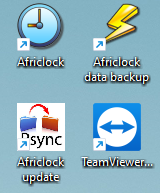
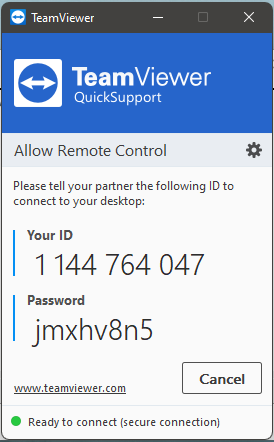
Click on this link to open TeamViewer when you're phoning us for help. There will also be a TeamViewer programme on the desktop which will be downloaded every time with a software update.
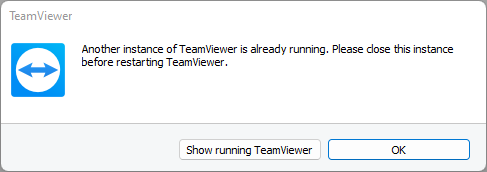
If you see the following screen, choose the 'Show running TeamViewer' option.
We will need the ID and password to gain access to the computer.
If you do not receive an ID and password on your TeamViewer screen, make sure that you have internet access. This will be shown at the bottom of the screen with a green circle (have internet access) or red circle (no internet access).
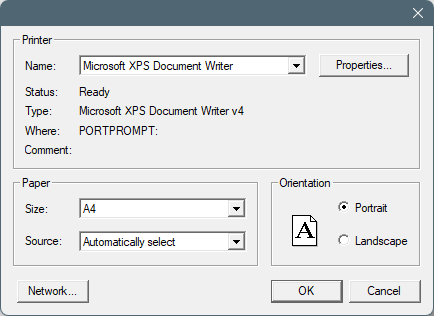
This option will open a screen where you can mark which printer should be used from Africlock. The system will still ask where the document must be printed, but the printer that's chosen here, will already be chosen on the list of printers.
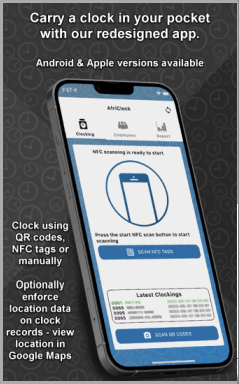
We have a solution where you're working with small or widespread teams, where the purchase of an expensive clock isn't justified. The solution is an Android / iPhone app with a web based link to our time and attendance system. Click on the picture for more information (it will open a link on the website).
If you experience problems which you are unable to solve, these are the numbers on which to contact us. We prefer to receive telephone calls during standard working hours.
This is a quicker why to get to some paths and functions. Do NOT change any of the paths. There is reasons why it is saved where it is, and to change the locations might cause communication gaps in the software.