Africlock Manual
Menu

Personnel

 
Personnel
A list of all employees in the system. You can create, change or delete employee records and perform other actions as well.
1

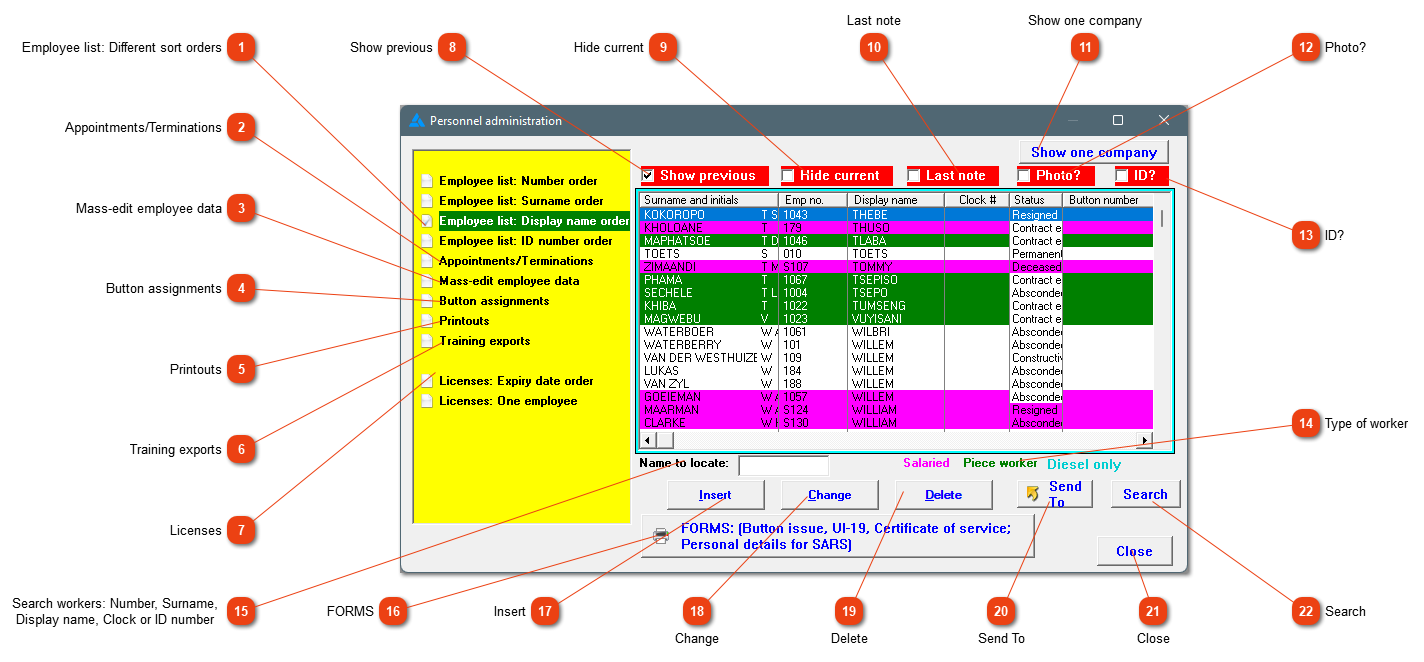
Employee list: Different sort orders

1. Employee list: Different sort orders
Employees can be sorted by number, surname, display name or ID number order. Choose the option you prefer.
22. Appointments/Terminations
Anything regarding appointments and terminations should be handled here.
33. Mass-edit employee data
If there is a large amount of changes to be made, and many of these changes overlap from employee to employee, it can be done here. Personnel data, data of salaried workers, gross pay, UI-19 values, PASTEL values, employment equity data and occupation descriptors can be changed in mass. The set up of access control also occurs here.
44. Button assignments
Button assignments can be done here, or on the employee's worker data (Personnel or Fix employee).
55. Printouts
Printouts regarding personnel can be found here.
66. Training exports
Printouts regarding training can be found here.
77. Licenses
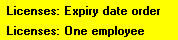
Driver's licenses can be entered here. The system will warn you two weeks before the expiry date, and the warning will be shown every time Africlock is opened until the license has been renewed and a new date added on the system.
88. Show previous
Click here to show or hide all employees no longer in your service.
99. Hide current
By checking this box, all the currently employed workers will be hidden.
1010. Last note
If this block is checked it will show the last note made on the employee's profile in the additional remarks column.
1111. Show one company
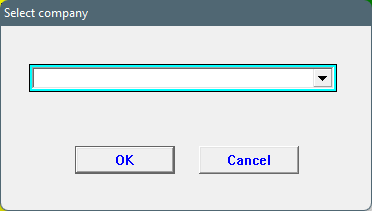
By choosing a company in the list, it will only show the applicable company's employees.
1212. Photo?
If this block is checked, all the employees with photos will have a remark in the additional remarks column: 'Photo captured.'
1313. ID?
If this block is checked, all the employees with an ID document captured on the system, will have a remark in the additional remarks column: 'ID captured.'
14

Type of worker

14. Type of worker
Employees on a white background are classified as clock workers, those on a pink background are classified as salaried workers and those on a blue background are only on the system as diesel users.
15

Search workers: Number, Surname,

Display name, Clock or ID number

15. Search workers: Number, Surname, 
Display name, Clock or ID number
Typing a surname here (or the employee number, depending on the sort order) will make the cursor jump to that employee, or you can use the normal navigation buttons (up, down, page-up and page-down) to find a specific employee.
16

FORMS

16. FORMS
This opens a personnel list with various labor forms.
1717. Insert
Click to add a new employee record. Appointments/Termination/Add a new employee will open the same screen.
1818. Change
Click to change the highlighted employee's details.
1919. Delete
This procedure can only be done from  Appointments/Terminations/Completely delete an employee. This will delete ALL data for that person but will ONLY work if he/she has been out of your employ for at least three years. The function is also available here.
2020. Send To
This button (which becomes active as soon as the list contains one or more entries) allows you to print, export or e-mail the contents of the list.
2121. Close
Close the window.
2222. Search
This opens a new screen where employees can be found by surname, employee number, display name, ID-/passport numbers and occupation.
The online help was made with Dr.Explain