TODO: To change the footer's content go to Dr.Explain menu Options : Project Settings : HTML (CHM) Export : Setup HTML Template and Layout
How to add a new clock worker?
Adding a new employee on the system is discussed under Appointments/Terminations. For the employee to be able to clock, the following steps must be followed:
BUTTON BASED CLOCK
1. Allocate a button to the employee on the software.
3. Give the button to the employee so that they can start to clock.
4. The employee can start clocking without step 1 and 2. The system will show you that there is an unallocated button number during conversion.
BIOMETRIC CLOCK
1. The employee must be loaded on the clock machine.
2. Then the bio clock number must be allocated to the employee on the system. This can be done in various places:
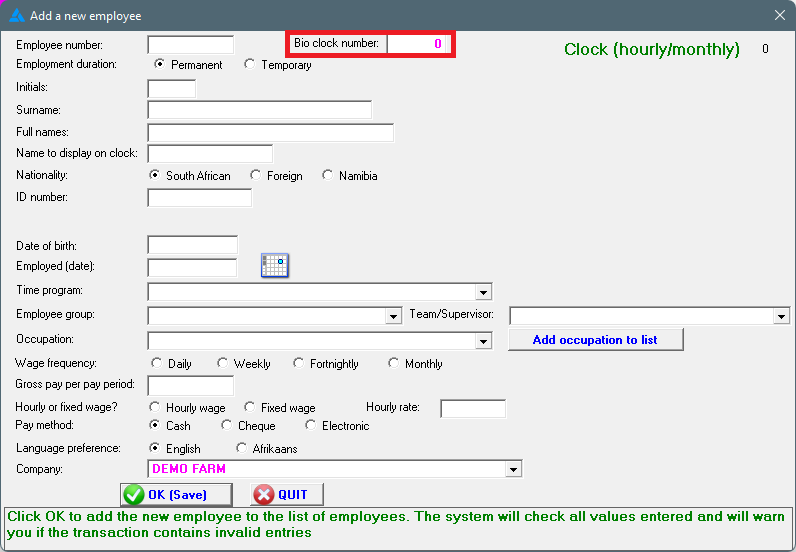
OPTION 1: Personnel/Insert (Use this method if this employee isn't loaded on the system and you already have a bio clock number):
OPTION 2: Personnel/Choose applicable employee/Change/Clock (if the employee is already loaded on the system, his/her bio clock number can be imported here):
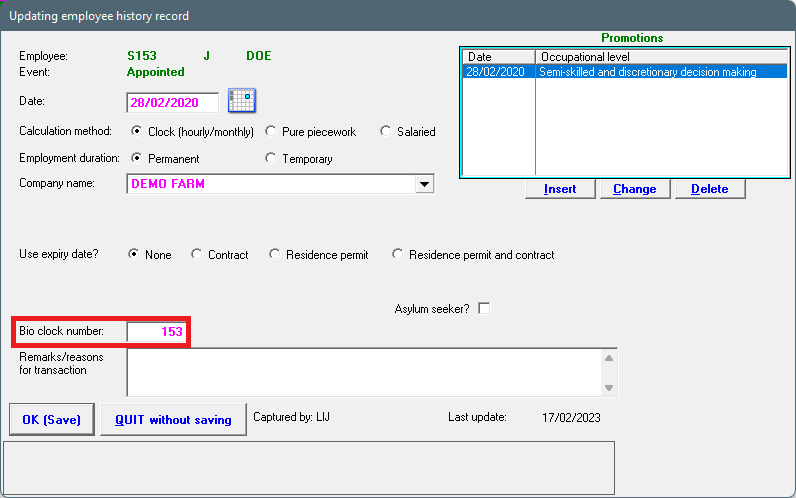
OPTION 3: Personnel/Choose applicable employee/Change/3. Employment history/Highlight the top entry/Change employment entry:
The bio clock number can then be edited or added on the following screen (if the employee has already been loaded):
PLEASE NOTE: The system allocates a bio clock number from the start of the employee's appointed date and this cannot be changed and can also not overlap with another employee's allocation to the same number.