TODO: To change the footer's content go to Dr.Explain menu Options : Project Settings : HTML (CHM) Export : Setup HTML Template and Layout
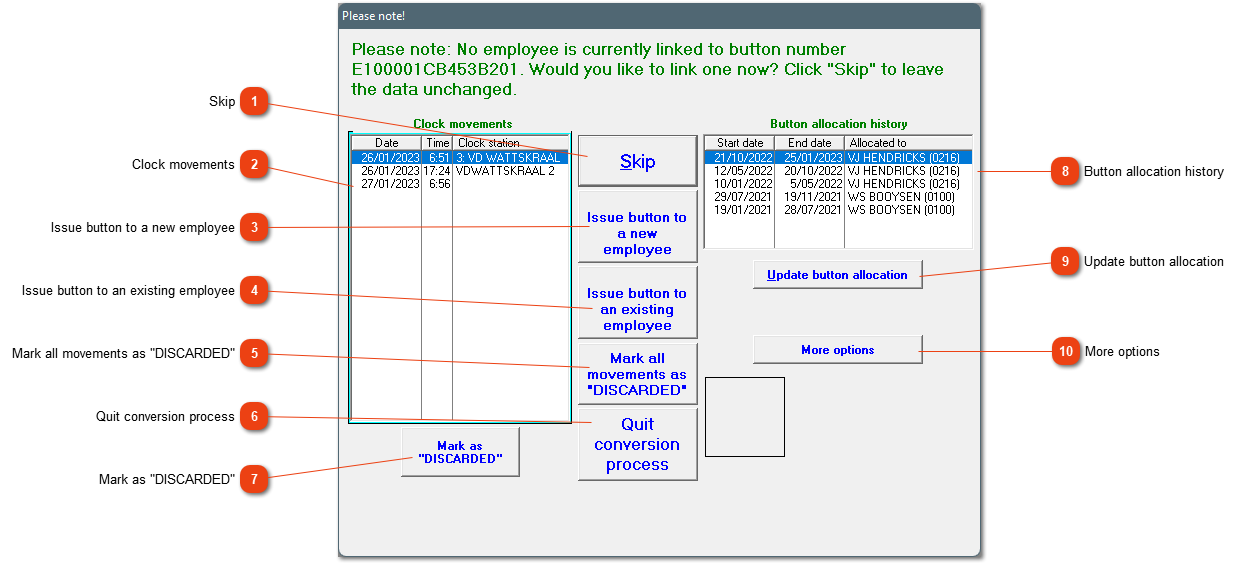
Button numbers not allocated
This button will NOT make the problem go away. This will only allow you to continue with the processing of clock movements by ignoring the problem temporarily. You still need to solve the problem.
If you do know whose button number this is, and the employee isn't loaded on the system, this option can be used to load the new employee and to issue the button.
Please be careful when using this option. This means that ALL the records in the list will be marked as 'Discarded'. Such records will be skipped with conversion until the status is changed to 'Unconverted'.
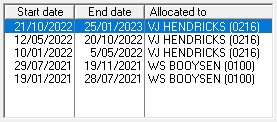
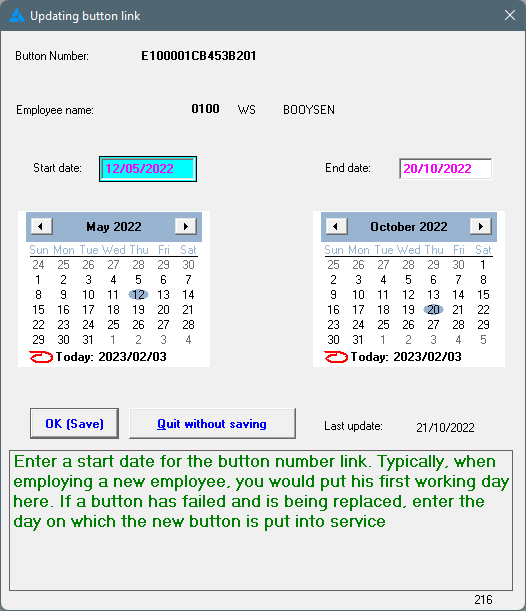
If a button number has been allocated to an employee, but the date of the allocation is wrong, the date can be edited here provided that the dates do not overlap.
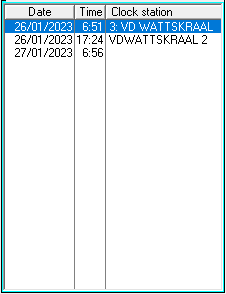
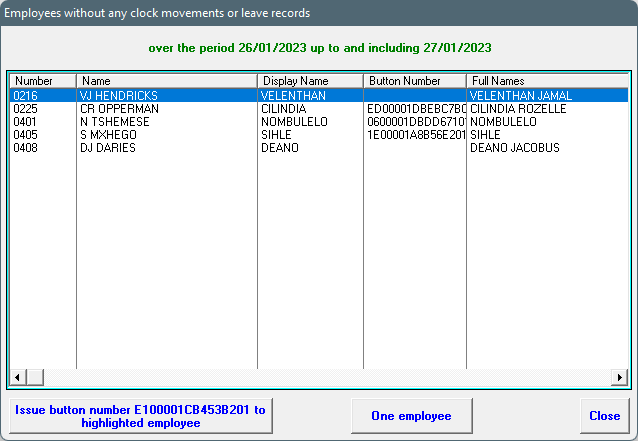
Employees with no clock movements on a given day where a button with no allocation was used, will be shown in this table.
From this screen, the button can be allocated to a specific employee, or you can take a more in depth look at the employee by clicking on 'One employee'.