TODO: To change the footer's content go to Dr.Explain menu Options : Project Settings : HTML (CHM) Export : Setup HTML Template and Layout
Exceptions: Records that could not be processed automatically
The system will attempt to convert data automatically, but with every problem the conversion will stop and show what it has, to help you correct the problem.
There is several options to rectify the problem and to continue with the conversion process.
Clock movements that cannot convert
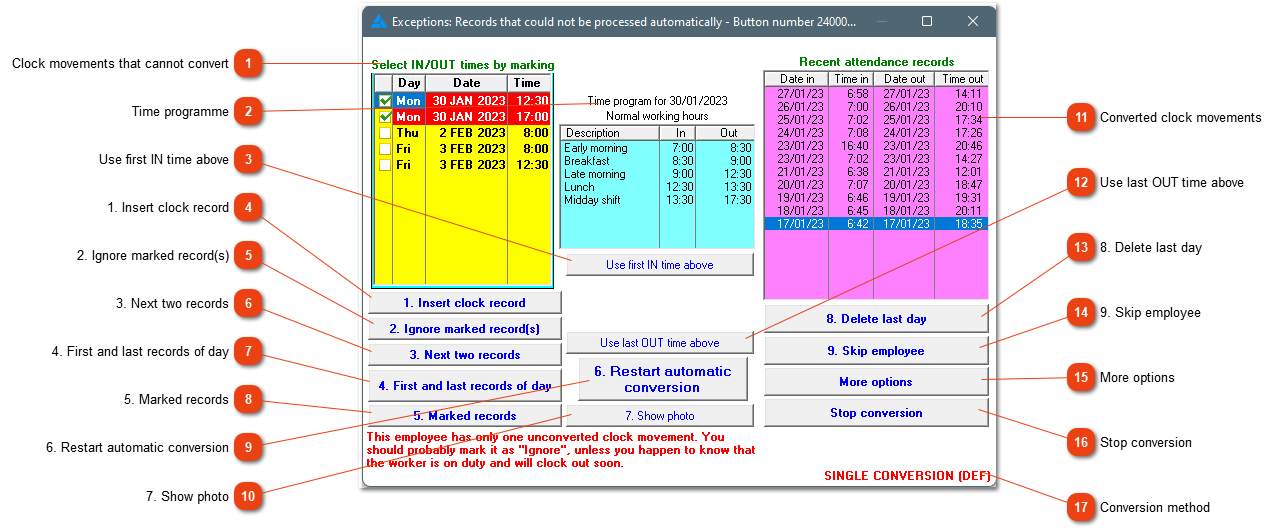
The movements that cannot be converted will be shown in the yellow block. Problems can be described at the bottom of the screen.
Possible problems (with solutions) can be:
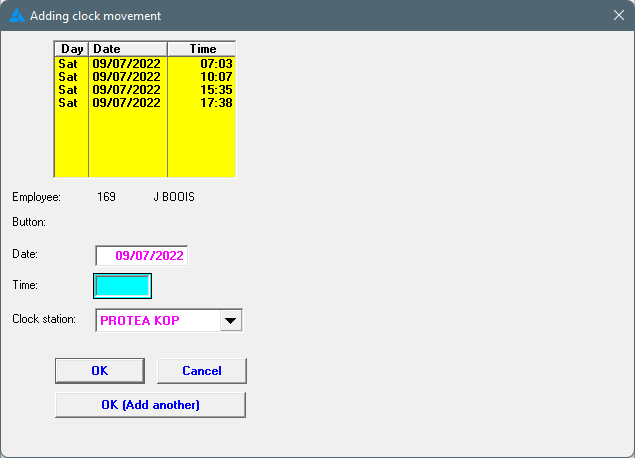
- The employee only clocked once. Add (#3) a clock movement
- The employee has an odd number of clock movements (if multiple conversion has been selected). Add (#1) or ignore (#2) a clock movement.
- The employee's time programme requires a certain amount of clock movements. Add clock movements or if the clock movements are correct, click on '3. Next two records'.
- The employee isn't currently on a time programme. 'More options' will allow you to edit/add a time programme.
- The employee has a lot of overtime. If this is correct - '3. Next two records'.
- The employee worked a night shift and the system didn't group it together - '3. Next two records'.
There are more scenarios than mentioned above. If you are unsure about the problem and how to solve it, feel free to call us.
If the employee didn't clock in, this button can be used in the place of '1. Insert clock record'. This will generate a clock movement on the first defined time on the time programme.
If an employee clocked too many times, one or more records can be ignored. Mark the applicable records and choose #2 Ignore marked record(s). If there is a lot of records to be deleted, rather look at #5 marked records or #4 first and last records for the day.
This will force the system to ignore all the movements between the first and last clock movement for the day. The system will create an attendance record from the first to the last record of the day.
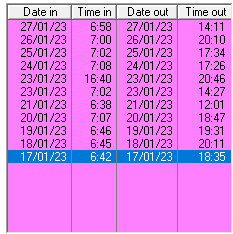
All attendance records as created with the conversion process, will be shown here. If one or more of the records isn't correct, it can be deleted with 'Delete last day' This is done retroactively from the last day to the day that needs correction.
If the employee didn't clock out, this button can be used in the place of '1. Insert clock record'. This will generate a clock movement on the last defined time on the time programme.
This opens the 'Fix employee' screen if something needs to be rectified (for example time programme-, appointment, button number dates, or leave dates can be added if remembered at this stage).
Stop the conversion process if you want to check something. The whole process will be stopped, but data that has already been converted will not change.