Electronic declaration for U-Filing - Email
To electronically submit the monthly UIF Declaration to the Department of Labour, it is important to have the Company’s details completed in full in Africlock.
COMPLETE THE COMPANY PARTICULARS:
1. Click on the Main Screen on: Tables.
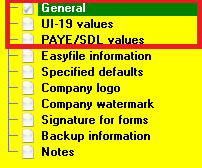
2. Nr. 1 - 'General' will be highlighted in green.
3. Click on the option on the right hand side in pink/blue: Company Particulars:
4. Complete the fields required: General (Company particulars), UI-19 values and PAYE/SDL values:
ELECTRONIC SUBMISSION OF RETURN:
1. Click on the Main Screen on: Pay.
2. Click in the yellow block on: Returns.
3. Select from the options on the right hand side in pink/blue: 'Electronic declaration for UFiling - Email':
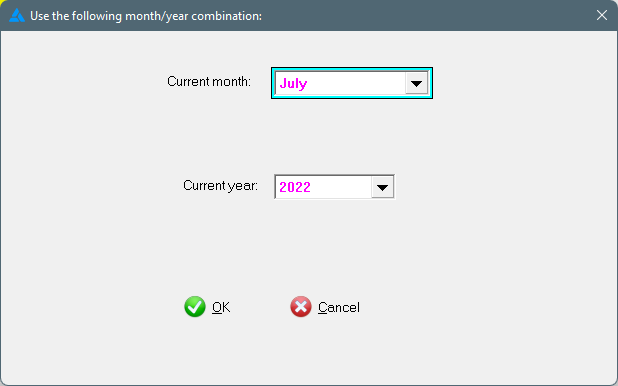
4. Choose the correct month and year applicable:
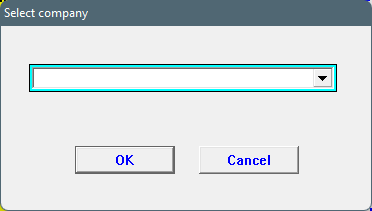
5. Select the correct company (if more than one):
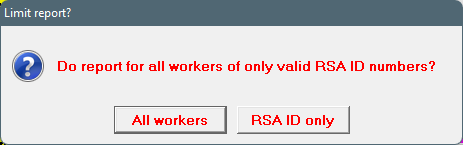
Limit report to only South Africans or all workers?
6. A summarised report reflecting the specific month's UIF will be displayed on the screen:
7. If satisfied with the figures reflected on the report, close the report.
8. A message will appear confirming that the UIF file will be saved to the Desktop:
9. Click on: 'OK'.
10. A screen will appear with the question: 'Send results to UIF declaration?'.
11. Click on: 'Yes', to confirm:
12. A screen will open with the UIF Department's e-mail address, as well as your own will be displayed.
13. If correct, click on: OK (Send):
14. The file will now be submitted and you can expect to receive a confirmation e-mail from the Department.
Should an error message appear at any time or you experience problems in submitting the file, contact Africlock for assistance.