Africlock Manual
Menu

Change: Updating employee history record

Change: Updating employee history record
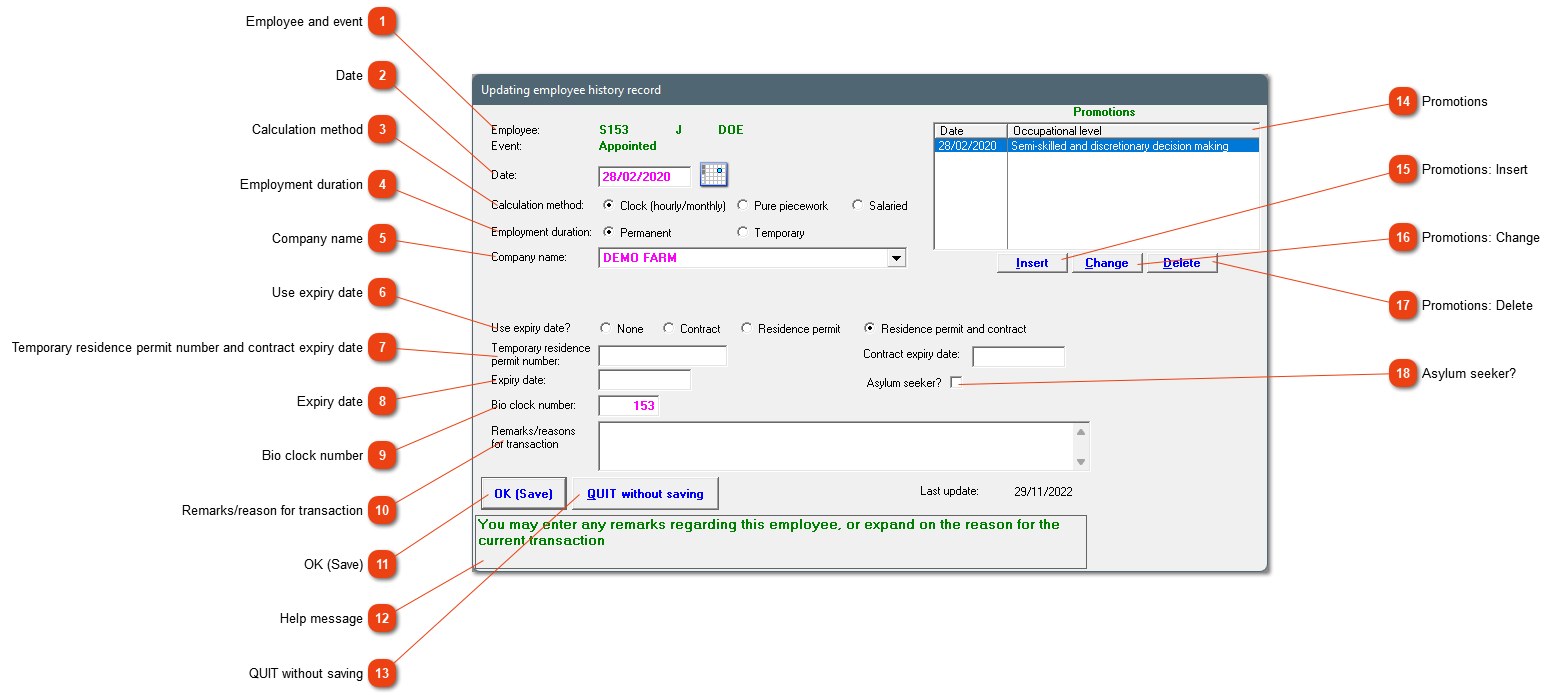
Edit the employment history record.
1

Employee and event

1. Employee and event
The employee's initials and surname will be shown here.
The event will be either appointed or one of the employment termination options (for example dismissed, resigned, transferred etc.)
2

Date

2. Date
The date the event occurred.
3

Calculation method

3. Calculation method
Is the employee employed as a clock worker, a piece worker or a salaried worker?
4

Employment duration

4. Employment duration
Is this a temporary or permanent contract?
5

Company name

5. Company name
The company where the employee is employed. If there is already a pay slip made during this period, the company cannot be changed (phone Africlock if the employee is in the wrong company). If the employee starts to work in a new company of yours, transfer the employee so that the historic data stays correct.
6

Use expiry date

6. Use expiry date
If the employee has a contract up to a certain date or a residence permit with an expiry date, this can be marked here. The dates will be shown on the pay slip, and the system will alert you if it is getting closer to the expiry date.
7

Temporary residence permit number and contract expiry date

7. Temporary residence permit number and contract expiry date
Add the temporary residence permit number. The field will be available if residence permit was marked. The contract expiry date must be entered if one of the contract options was chosen.
8

Expiry date

8. Expiry date
Enter the correct expiry date.
9

Bio clock number

9. Bio clock number
The bio clock number as it is loaded on the bio clock.
10

Remarks/reason for transaction

10. Remarks/reason for transaction
Add a remark with regards to the employment history record, if necessary. If it is a service termination entry, and you don't want to ever re-employ this worker again, add an exclamation mark (!) in this field.
1111. OK (Save)
Click here to save the information.
12

Help message

12. Help message
This is a help area with context sensitive messages to assist you in completing the form.
1313. QUIT without saving
Close the screen without saving the edited information.
14

Promotions

14. Promotions
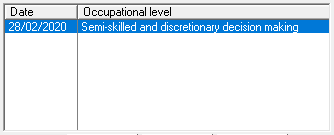
Any promotions will be shown here. This is important for the EE-report.
15

Promotions: Insert

15. Promotions: Insert
Add a promotion entry here.
16

Promotions: Change

16. Promotions: Change
Change the promotion entry.
17

Promotions: Delete

17. Promotions: Delete
Delete a faulty promotion entry.
1818. Asylum seeker?
Check this block if the employee is an asylum seeker.
 
The online help was made with Dr.Explain