To properly display this page you need a browser with JavaScript support.
Changing an attendance record
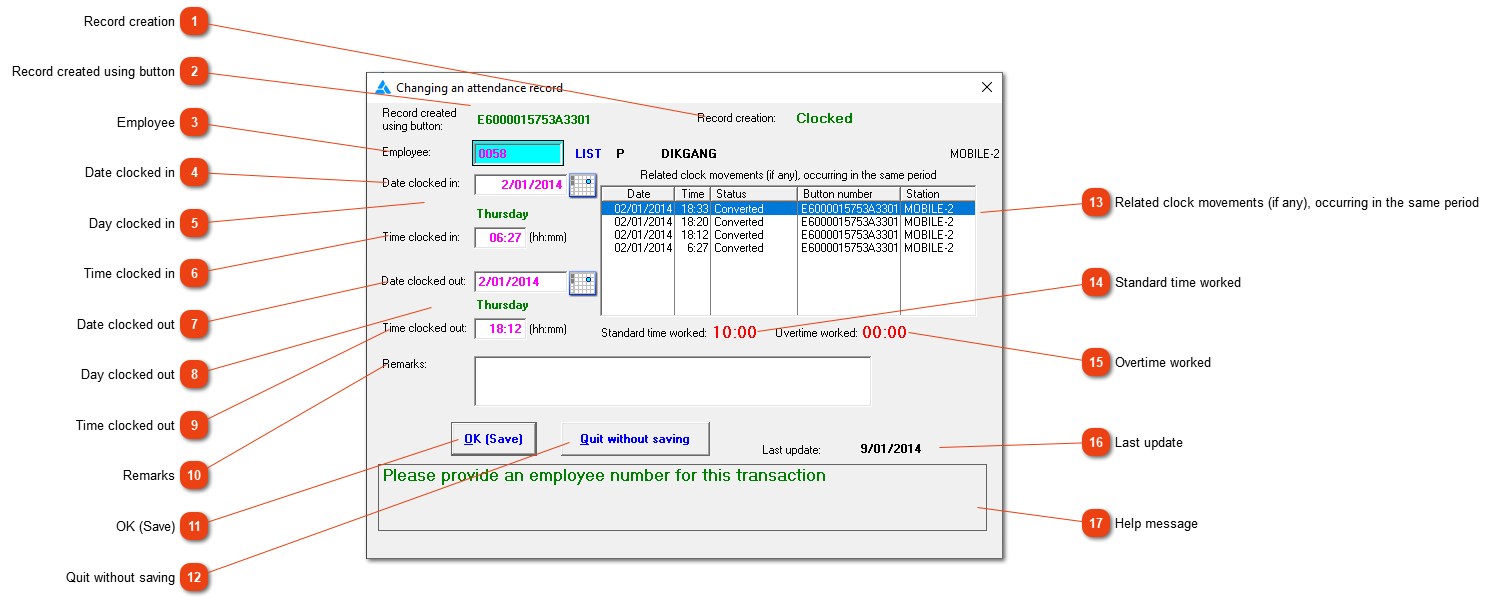
Record creation
The the the record was created will be stated here.
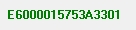
Record created using button
If the record is created during the conversion process, the button number used will be shown here. With manually added records, the terms 'Manually created' or 'Time off' will be shown here.
Employee
Choose the correct employee by typing his/her employee number or looking for the employee on the list.
Date clocked in
If the date must be changed, edit it here. Please note, the date clocked out must also be changed (it doesn't change automatically).
Day clocked in
The day corresponding to the date clocked in will appear here.
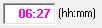
Time clocked in
If the clock in time must be changed, edit it here.
Date clocked out
Please make sure the correct dates have been entered for the in- and the out movement.
Day clocked out
The day corresponding to the date clocked out will appear here.
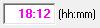
Time clocked out
If the clock out time must be changed, do it here.
Remarks
It is good practice to add an applicable remark here as to why the change was made, especially if there is a problem with the employee in the future.
Click here to change the record.
Close the window without saving any changes.
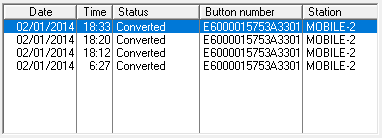
Related clock movements (if any), occurring in the same period
All the clock movements for the applicable time period will be shown here.
Standard time worked
The system will show you how much of the attendance record is normal/standard time with regards to the time programme. 10 hours will only be lawful in high season time if it is balanced with 8 hours in low season.
Overtime worked
The system will show you how much of the attendance record is overtime with regards to the time programme.
Last update
The date when the record was last updated.
Help message
This is a help area with context sensitive messages to assist you in completing the form.