TODO: To change the footer's content go to Dr.Explain menu Options : Project Settings : HTML (CHM) Export : Setup HTML Template and Layout
How to add an employee's tax number
Where a Tax Number is available for an employee, it needs to be completed on his/her personal profile:
1. Click on the Main Screen on: Fix Employee.
2. Select the correct employee by clicking on the word 'LIST'.
3. A Personnel List will be displayed. Double click on the employee's name.
4. The employee's personal profile will open.
5. Look beneath the yellow block for the option 'Employee Profile'. Click on the option.
6. A second profile page will open where personal data can be viewed / changed.
7. Select from the options in the yellow block: Rates/Tax.
8. Complete the employee's tax number on the right hand side at the top: Income tax number.
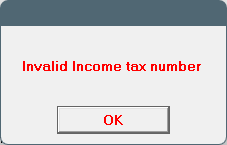
The system will give the following message if the tax number is incorrect:
9. Also indicate the employee's tax nature (second option form the top on the right hand side in white), by clicking on the black 'dropdown' arrow.
10. Choose between: A for an individual with ID or Passport Number; B for an individual without ID or Passport Number, and C for a Director of the Company.