If the company's name and registration number, PAYE/UIF and VAT number have changed, we suggest the following:
1. Add an additional company;
2. Change the new company as added to the default company;
3. Transfer the employees to the new company.
By doing the above mentioned, the history of the previous company will be preserved for future use/reference.
Add the additional company as follows:
1. On the Main Screen, click on Tables.
2. In the yellow block, GENERAL will be marked in green.
3. Choose from the options on the right hand in pink/blue: Additional companies:
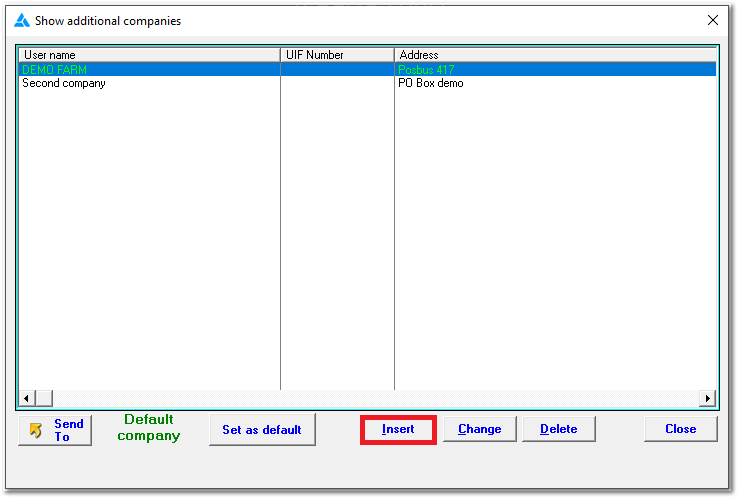
4. A list of existing companies will be shown.
5. Click on: Insert
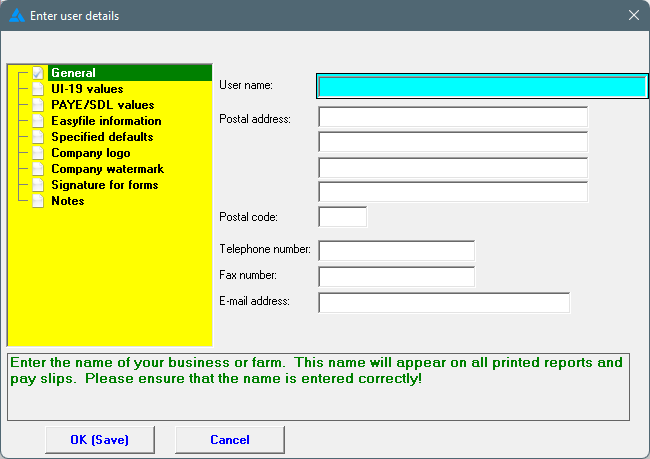
6. Complete all fields as needed and then click on: OK (Save).
7. Processing can be done separately for each company - for example, when generating reports, an extra option for One/All companies will appear on the screen.
To set up the 'new' company as default company, follow these steps:
1. On the Main Screen, click on Tables.
2. In the yellow block, GENERAL will be marked in green.
3. Choose from the options on the right hand in pink/blue: Additional companies:
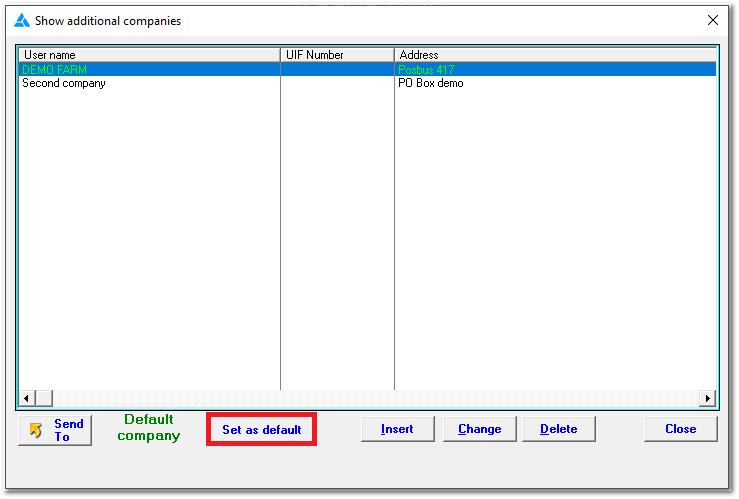
4. Select the 'new' company (the company name will be highlighted in blue).
5. At the bottom of the page, click 'Set As Default':
To transfer employees to the new company, follow these steps (the workers must be transferred one-by-one - if it is all the employees in a company, please call us and we will be able to transfer it for you in a faster way):
1. On the Main Screen, click on: Personnel.
2. Choose from the options in the yellow block: Appointments/Terminations.
3. Choose from the options on the right in pink/blue: Transfer employee to another company.
4. Select the employee's name from the 'LIST'.
5. Select the 'new' company by clicking on the 'down arrow'.
6. Add the date of transfer.
7. Click on: OK.