Add pay slip item: Commission
To insert a new pay slip item for 'Sales Commission', proceed as follows:
1. Click on the Main Screen on: Pay.
2. Select from the options in the yellow block: Pay slip items.
3. A list with existing pay slip items will be displayed.
4. To add the item for sales commission, click at the bottom of the screen on: Insert.
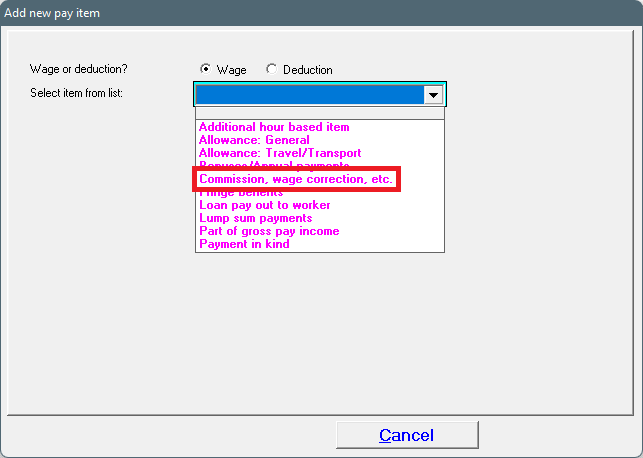
5. Select: Wage.
6. Select the correct item from the list displayed, by clicking on the black 'dropdown' arrow. Select: Commission, wage correction, etc.
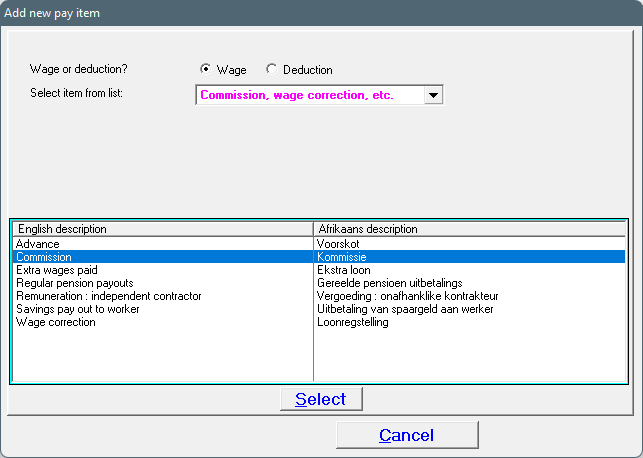
7. Select 'Commission' from the white table at the bottom of the page (the line will be highlighted in blue), and click on: Select.
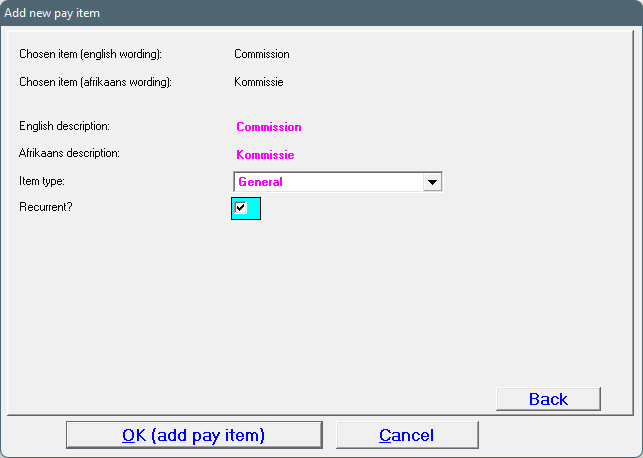
8. Select the item type: General, AND indicate if the transaction must be recurrent. If not, leave the tick box blank.
9. Click on: OK (add pay item).
10. The item for commission will be added to the existing list of pay slip items:
· If the transaction was marked as a recurrent transaction, it will automatically be repeated on the following pay slip.
· Should the commission amount differ from month to month, the amounts can be adjusted on the pay slips.
· Where it was indicated that the transaction is not recurrent, the transaction will not repeat on the following pay slip.
11. Please note: PAYE will be calculated on commission, but UIF will NOT be applicable – see the relevant Act.