TODO: To change the footer's content go to Dr.Explain menu Options : Project Settings : HTML (CHM) Export : Setup HTML Template and Layout
Employees with insufficient information
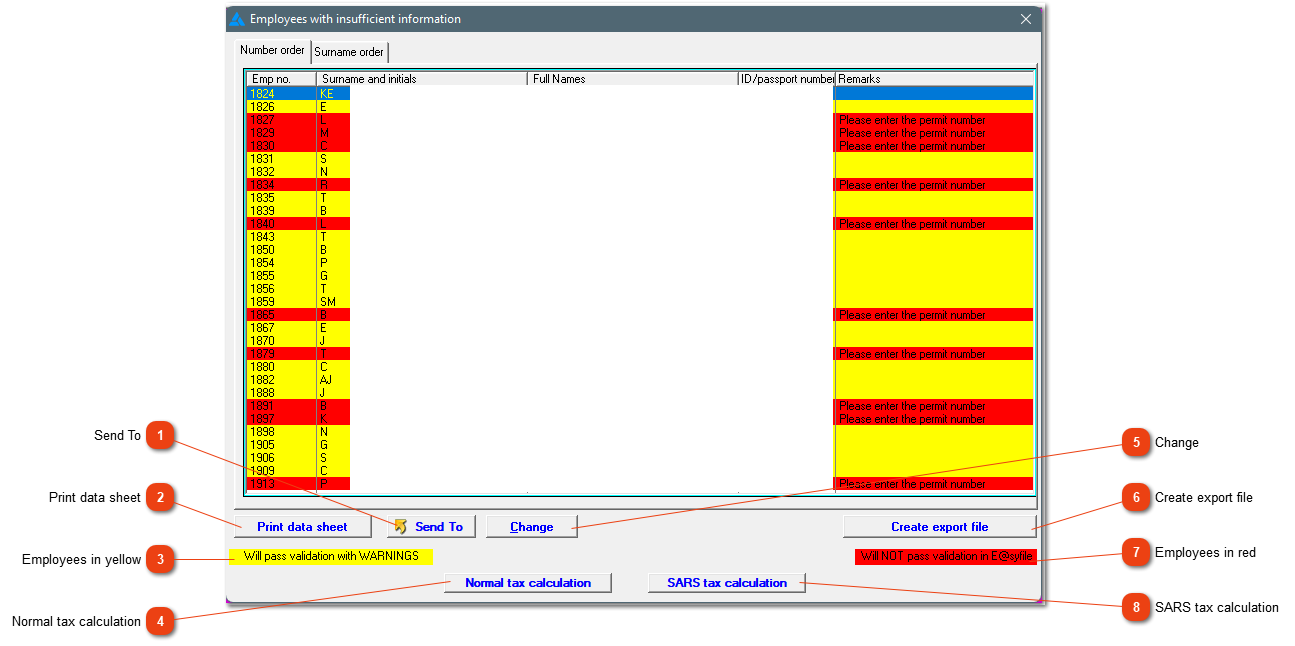
Before the export is created, you must work through the list of employees. Employees on this list isn't necessary all employees in your service for the tax year, but all the employees where information isn't complete.
This button (which becomes active as soon as the list contains one or more entries) allows you to print, export or e-mail the contents of the list.
This option creates a data sheet for the employee highlighted, with all the information currently available on the system. This can be printed and handed to the employees to update their information.
If the employees are marked in yellow, the file will still be imported successfully into EasyFile. It is usually because of a missing income tax number.
If there is no red employees on the list, the export file can be created. The following screen (if the file export is successful), will mention the amount of certificates created, and it will give you a couple of options with regards to the file. If you need to send the file to someone, use the bottom option, then all you need to do is add an email address. If the email programme doesn't open, then you can find the file on the Desktop and send it with your normal email programme. Do NOT try to open the file. This can change the format and it will fail when you try to import it.