Add a partial leave record (time-off):
PLEASE NOTE: Time-off will be converted to a leave record after a pay slip is created.
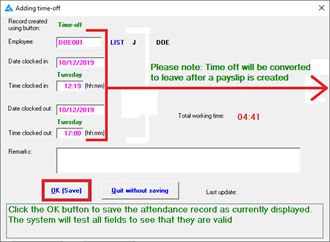
Complete fields:
- Employee: Select employee (as explained above);
- Date clocked in: Start date of leave;
- Time clocked in: Start time of leave
- Date clocked out: Date leave ended;
- Time clocked out: Time leave ended
- Click on OK (Save).
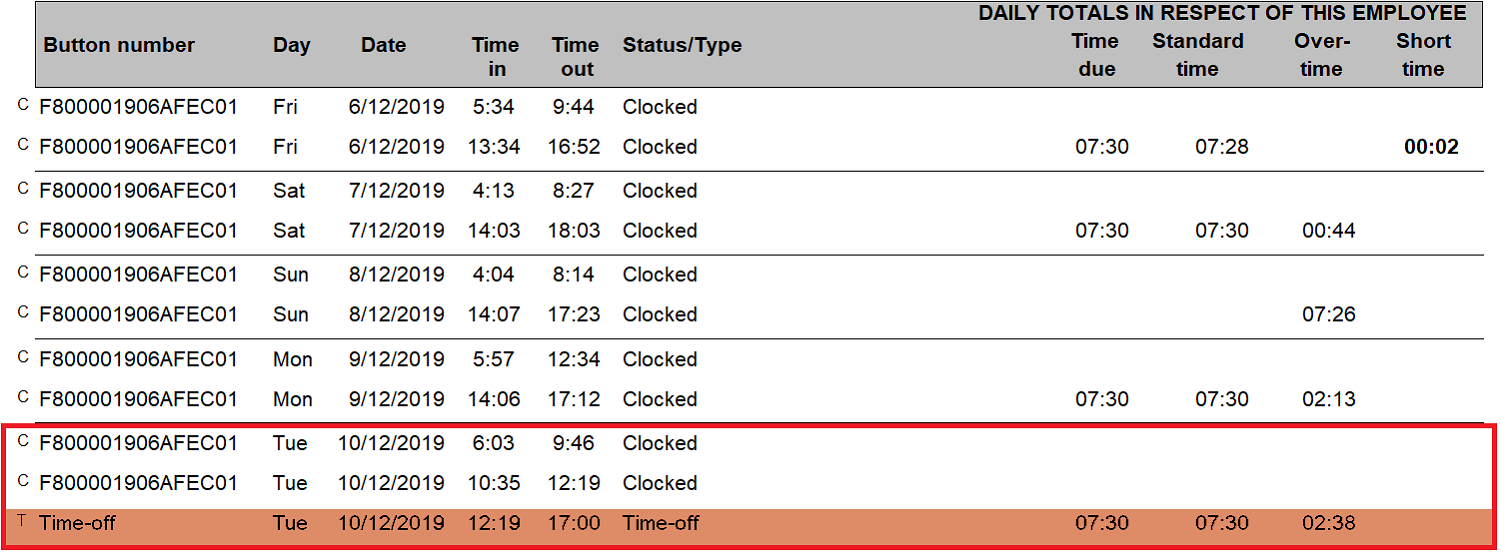
Example of time-off record (10/12/2019) on Attendance report:
The duration of the time-off will be calculated as standard time on the attendance report.
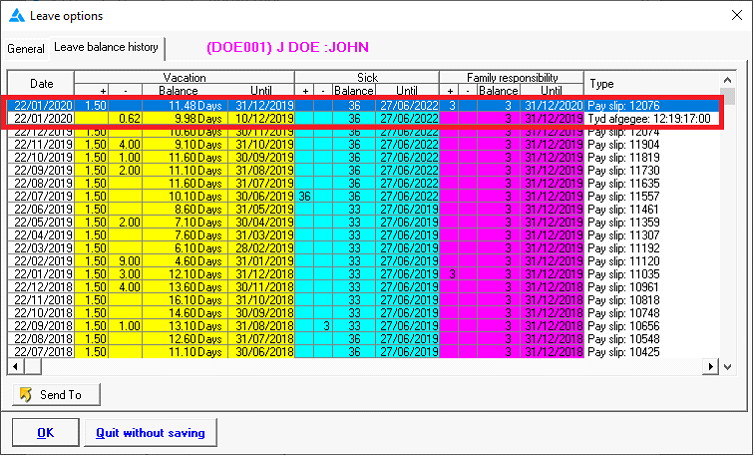
Example of Time-off record that is converted to a leave record (after pay slip is created):
On pay slip:
On leave balance history screen:
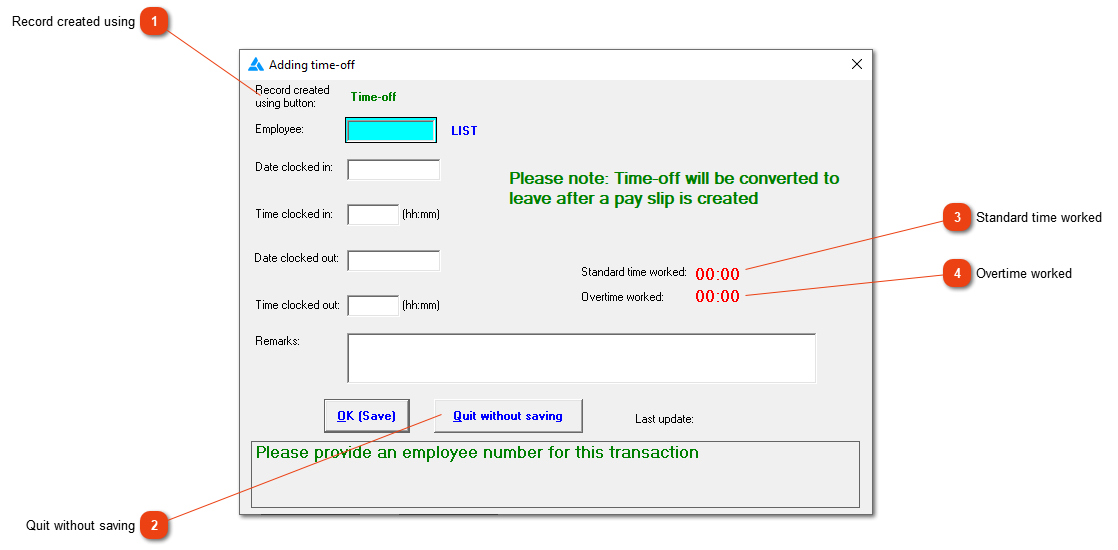
 Record created using
The status of the record will show 'Time-off' so that you can distinguish between converted, manual and time-off records.
|
|
|
Close the screen without creating a record.
|
|
 Standard time worked
The amount of hours that falls within the employee's time programme for a normal working day.
|
|
 Overtime worked
If hours are shown here, you're trying to create a time-off record that falls outside the hours of the time programme.
|
|