Africlock Manual
Menu

Options when generating pay slips

Options when generating pay slips
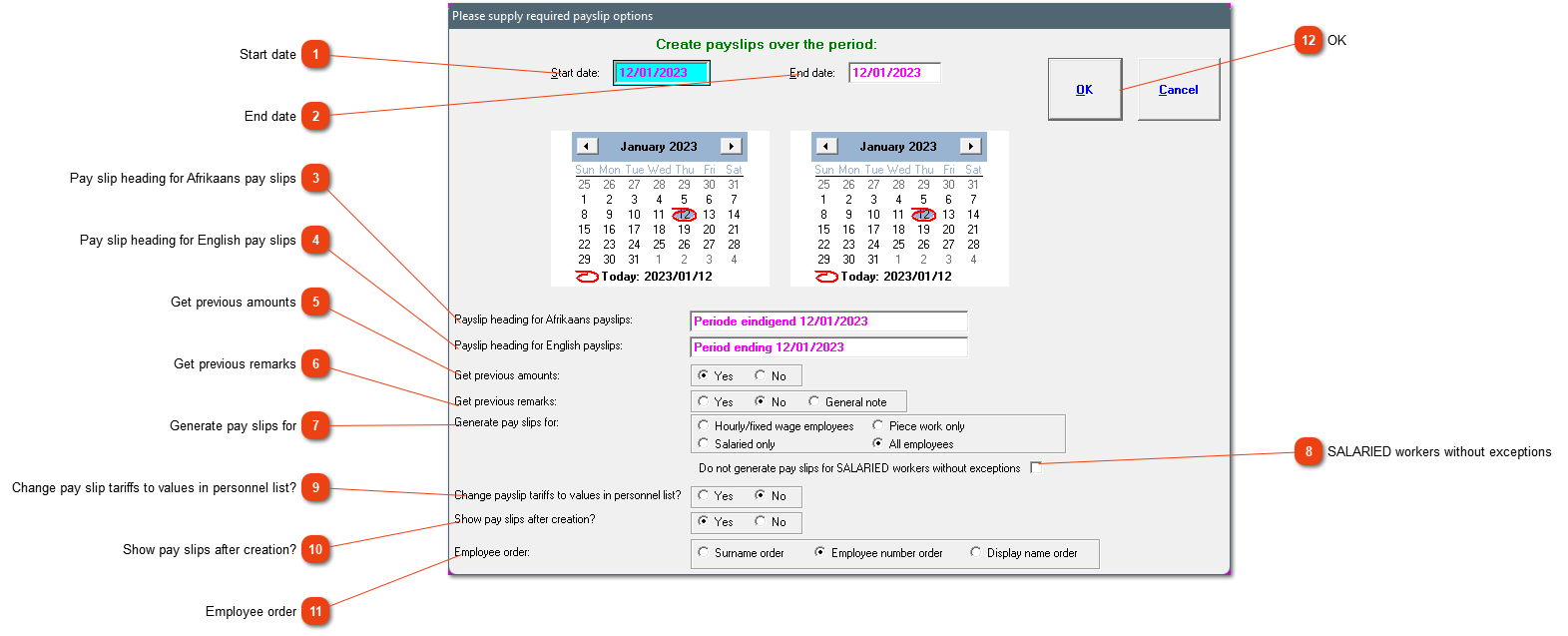
This window will open every time you are creating pay slips. This gives you a couple of options to be specified, applicable on the pay slips.
1

Start date

1. Start date
The first date included in the pay slip period. Hours worked, overtime and short time will be calculated from this date.
2

End date

2. End date
The last date included in this pay slip period. Hours worked, overtime and short time will be calculated up to this date.
3

Pay slip heading for Afrikaans pay slips

3. Pay slip heading for Afrikaans pay slips
The heading that will be shown on the Afrikaans pay slip. The system will automatically create a heading, but it can be changed.
4

Pay slip heading for English pay slips

4. Pay slip heading for English pay slips
The heading that will be shown on the English pay slip. The system will automatically create a heading, but it can be changed.
5

Get previous amounts

5. Get previous amounts
All recurrent items (additional payments and deductions) that appear on the current pay slip for the employee, will appear on the following pay slip. This setting asks if the AMOUNTS or just the items (with a zero value) must be repeated on the next pay slip. If the amounts differ per period, it is better to choose 'No'.
6

Get previous remarks

6. Get previous remarks
Please indicate if the previous remarks on the pay slips must be repeated on the new pay slips. 'General note' is used when a standard message must be given to each employee. Previous remarks will now be substituted on the pay slip with the general note.
7

Generate pay slips for

7. Generate pay slips for
Generate pay slips for a certain type of employee, or for all employees. This field isn't visible when pay slips are generated for one employee.
8

SALARIED workers without exceptions

8. SALARIED workers without exceptions
If you use exceptions to import hours for salaried employees, this option will exclude employees with no exceptions. This will eliminate R0.00 pay slips for employees with no exceptions. This can be a permanent adjustment if required.
9

Change pay slip tariffs to values in personnel list?

9. Change pay slip tariffs to values in personnel list?
If employees are receiving a wage increase, and you have entered these new wages under the personnel's data, choose 'Yes'. If 'No' is chosen, the wage on the previous pay slip will be carried over.
10

Show pay slips after creation?

10. Show pay slips after creation?
Choose 'Yes' if you wish to see each pay slip on the screen after it has been generated. This will allow you to check the pay slip and to change applicable items as the pay slips are generated. The pay slip can also be found and changed afterwards. This field will not be visible when one employee is chosen, the pay slip will always be shown then.
11

Employee order

11. Employee order
Choose in which order the pay slips should be generated.
1212. OK
Create the pay slips according to the chosen options.
The online help was made with Dr.Explain