Africlock Manual
Menu

Adding an employee group

Adding an employee group
Adding an employee group.
 
1

Options

1. Options
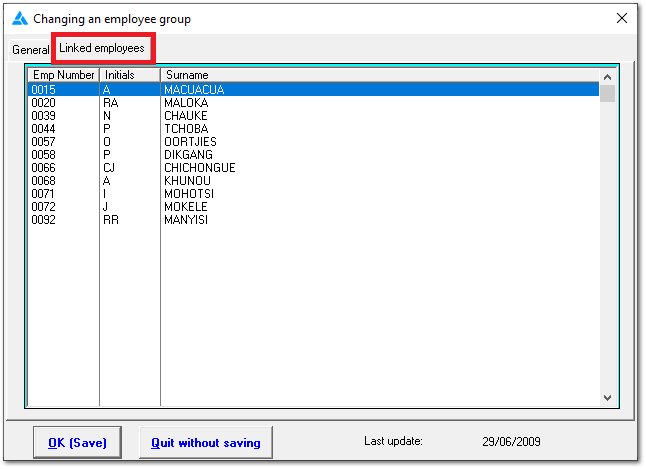
Click the 'Linked employees' tab to see a list of all employees in the group. Only applicable when editing the group name.
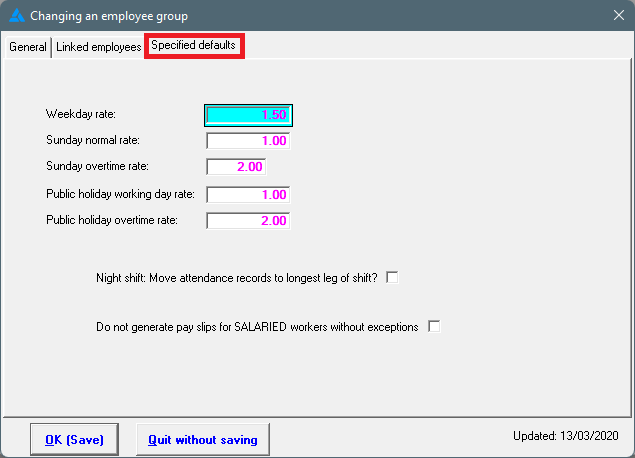
This is a hidden screen. Please phone if you want to discuss this functionality.
2

Group description

2. Group description
Enter a descriptive name for the employee group, e.g. Weekly, Monthly, Administration, Dairy or whatever.
3

Default time programme

3. Default time programme
Choose the default time programme for this employee group.
4

Conversion type

4. Conversion type
How should the system handle the conversion for this group? The conversion methods are discussed here.
5

Balance hours

5. Balance hours
 
This option allows you to specify how the system should handle those cases where employees have both overtime and short time. 'Standard' means it is the same setting as applicable to the company. Look here for further details.
6

Credit worker with time programme hours as NORMAL TIME

6. Credit worker with time programme hours as NORMAL TIME
The system looks at this setting to see how the employees in this specific group should be compensated on public holidays. 'Standard' means it is the same setting as applicable to the company. Look here for further details.
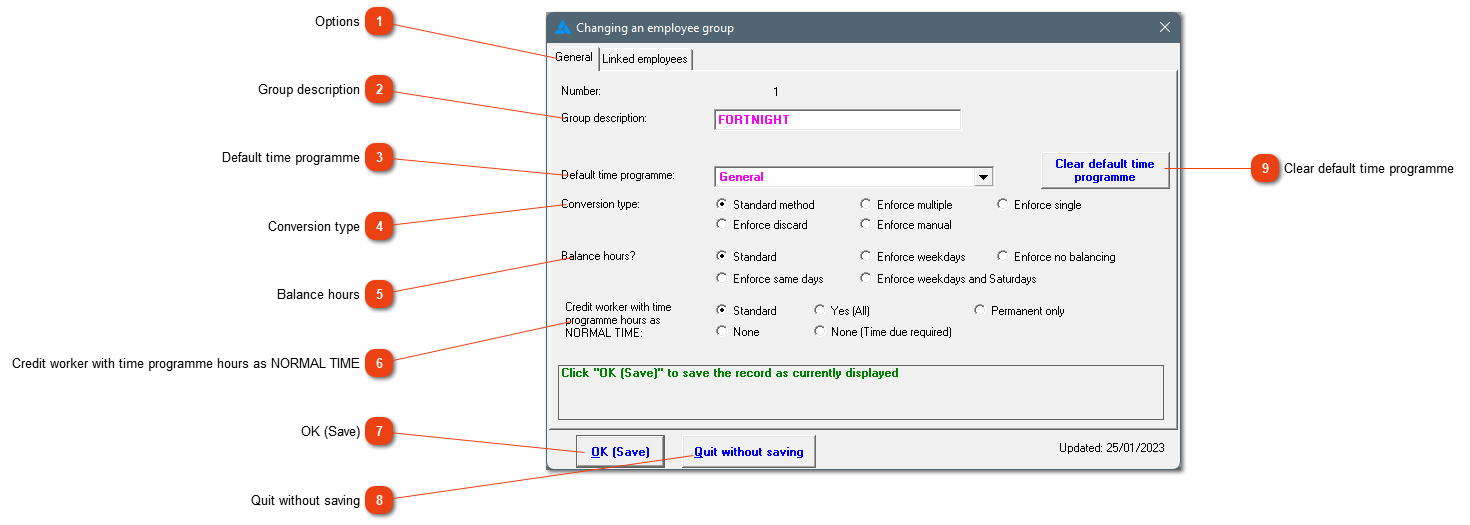
77. OK (Save)
Save the values currently displayed.
88. Quit without saving
Close the window without saving anything.
99. Clear default time programme
Clear the contents of the 'Default time programme'. There will then not be a specific time programme linked to this employee group.
 
The online help was made with Dr.Explain