TODO: To change the footer's content go to Dr.Explain menu Options : Project Settings : HTML (CHM) Export : Setup HTML Template and Layout
Balance hours
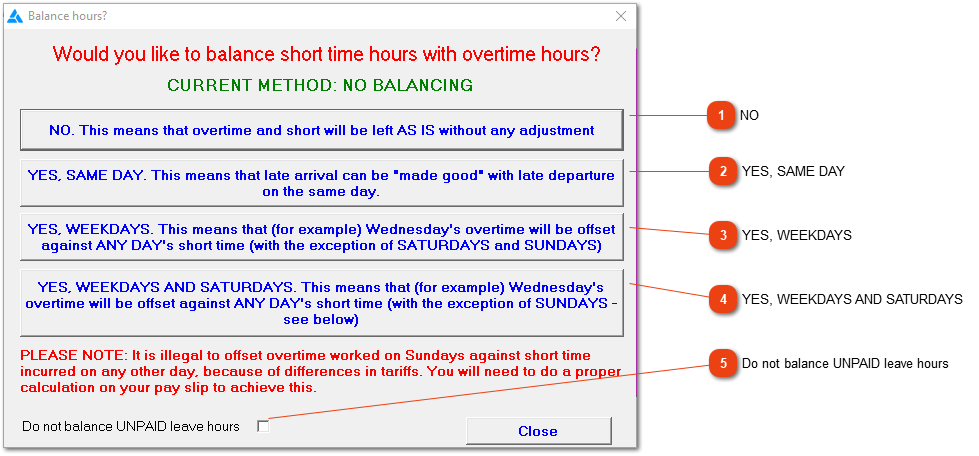
This window lets you specify how the system should deal with those cases where employees have worked overtime on one or more days but also have some short time.
Leave overtime and short time unchanged i.e. pay for overtime worked and deduct money for short time.
If an employee is absent, and unpaid leave records are recorded, should the system use those hours to balance overtime or not. It would be advantageous to the employee is it is left out of the equation.
The setting described above will be the default setting for the entire database. To change the setting for a specific employee group, follow these steps:
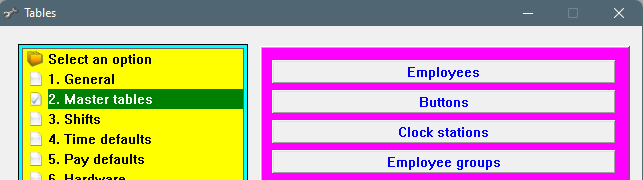
1. Click on Tables on the main screen.
2. Choose on the left side: Master tables
3. Choose on the right side in the pink/blue: Employee groups:
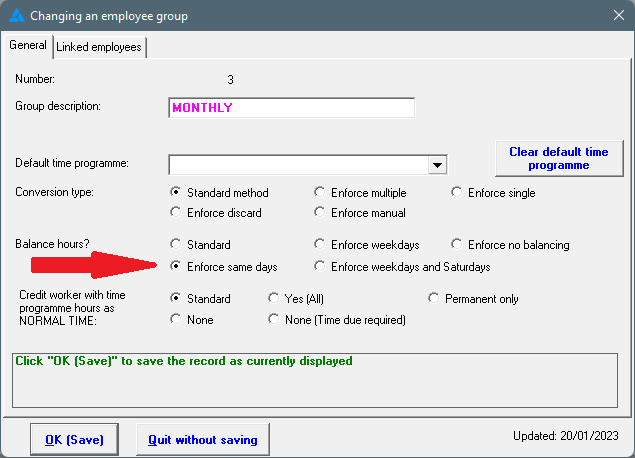
4. Choose the employee group that needs to be changed.
5. A screen opens where adjustments can be made.
6. See the option: Balance hours?
7. Choose the alternative method as desired.
8. Click on: OK (Save)
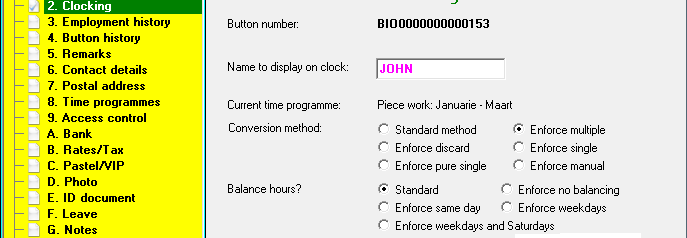
For the setting on an individual employee, follow these steps: