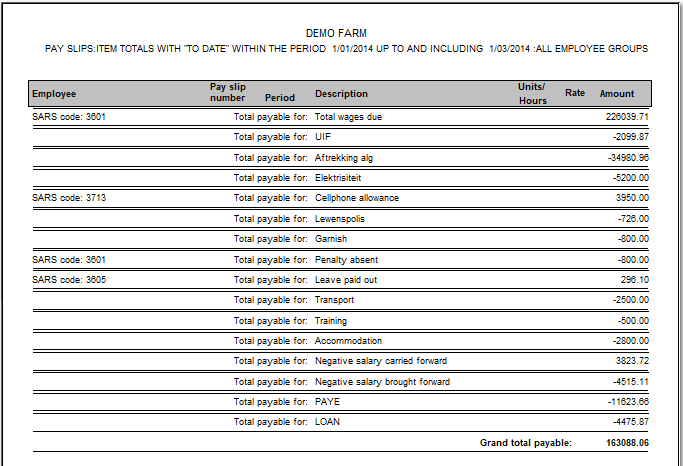
A report is available that can be printed displaying selected deductions/wages that was made from employees' pay slips in a certain pay period. For example: MEIBC sick fund contributions.
For example, where you have made an item for MEIBC sick fund contribution, and you need a report of totals in respect of this deduction, follow the steps below to print the report:
1. Click on the main screen on: Pay:
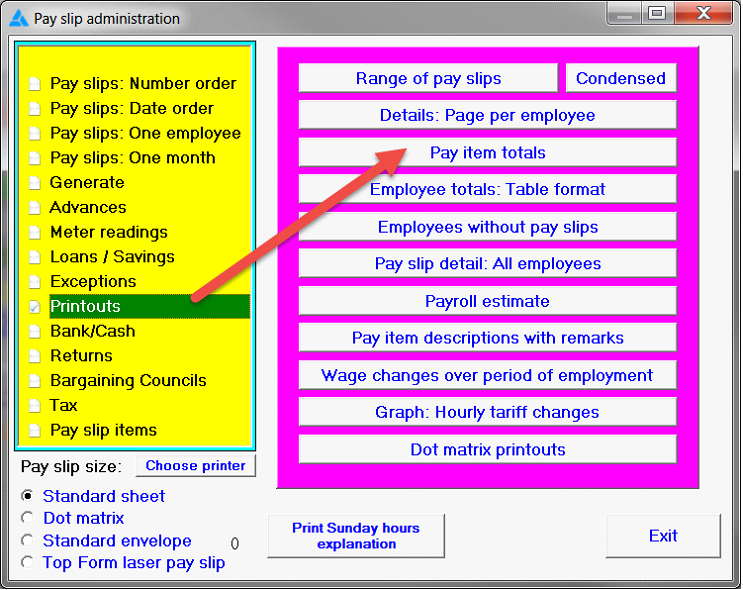
2. Select from the options in the yellow block: Printouts.
3. Select from the options on the right hand side in pink/blue: Pay item totals:
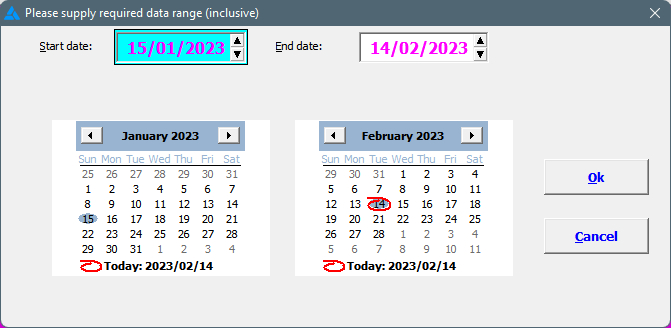
4. Supply the required data range (start date / end date):
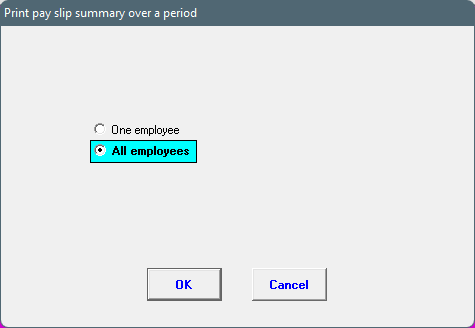
5. Then, indicate if the report is required for one, or all employees:
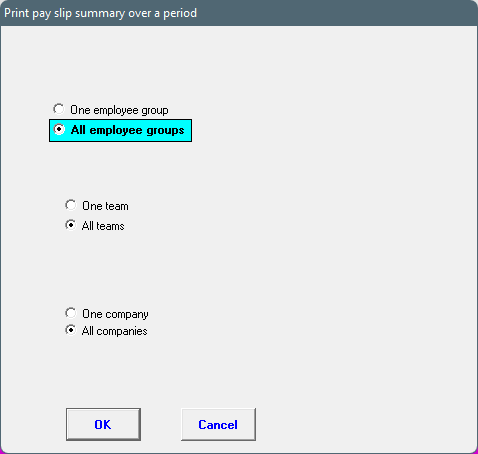
6. Select if the report needs to be printed for one or all employee groups, as well as one or all companies:
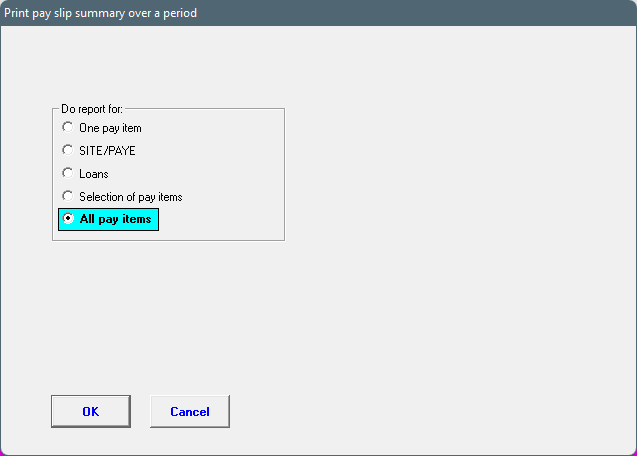
7. On the following screen you will be able to select which items need to be included in the report:
8. In this specific example, select: 'One pay item' (Additional options are available for: SITE/PAYE only, Loans, Selection of pay items, as well as All pay items).
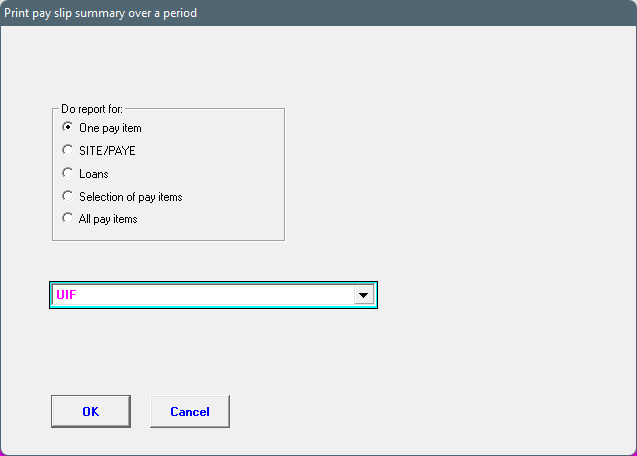
9. When selecting 'One pay item', a list of deductions will be shown. Click on the black drop down arrow to view the full list of deductions.
10. Make your selection, and click on: OK:
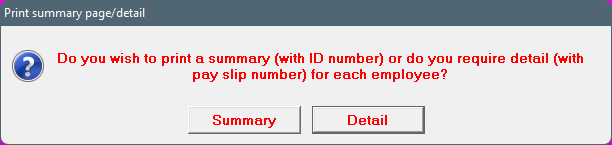
11. Subsequently indicate if you wish to print a summarised or a detailed report:
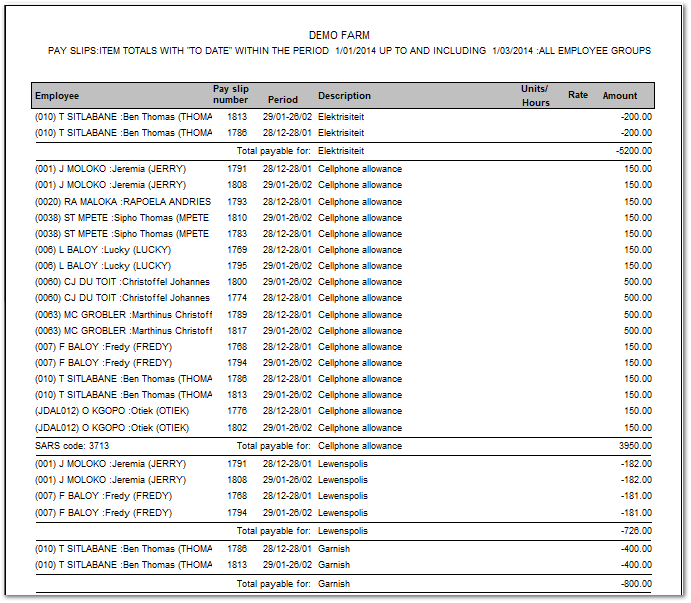
The report will be generated in accordance with your selections.
DETAIL:
SUMMARY: