TODO: To change the footer's content go to Dr.Explain menu Options : Project Settings : HTML (CHM) Export : Setup HTML Template and Layout
Pay slip items
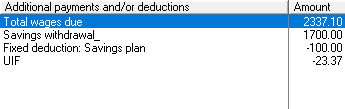
Every pay slip will have a section where the calculation of the nett remuneration will be set out, for example:
The system calculates the total wages , PAYE and UIF but does not automatically add any other items, for example Bonuses and Medical aids. If you want to use any items but it isn't on the pay slip items list, it should be created first.
After a list of pay slip items has been created, any item can be added on the pay slip with the correct amount or percentage. If the item has been set up as a recurrent item, this item will be added automatically on the following pay slips for the particular employee. Non recurrent items won't be shown on the next pay slip automatically and need to be added every time. It is important to understand the difference otherwise you can run into unexpected problems (see example in the note). If a recurrent item shouldn't be added on the next pay slip, it should be deleted from that first pay slip that it shouldn't be on. Adding and deleting of items is discussed here.
Note: You might use a regular bonus as incentive on a regular basis for a certain employee. A recurrent item - Bonus - can be created and it will be on all the following pay slips. During December, you want to give a bonus to all employees and use this same Bonus, BUT next month, the bonus is on ALL of the employees pay slips again. After you've deleted this from all the pay slips, you try to prevent this and create the Bonus item as a non recurrent item, but now you need to add it manually each period. To handle these two situations, create two items for example Bonus and Yearly bonus and define the first one as recurrent and the other as non recurrent.
Discontinued items will be shown in red, with ZZ_ written as a prefix. If the system does not want to allow the creation of a new item because of a duplicate, look at the old items as well.
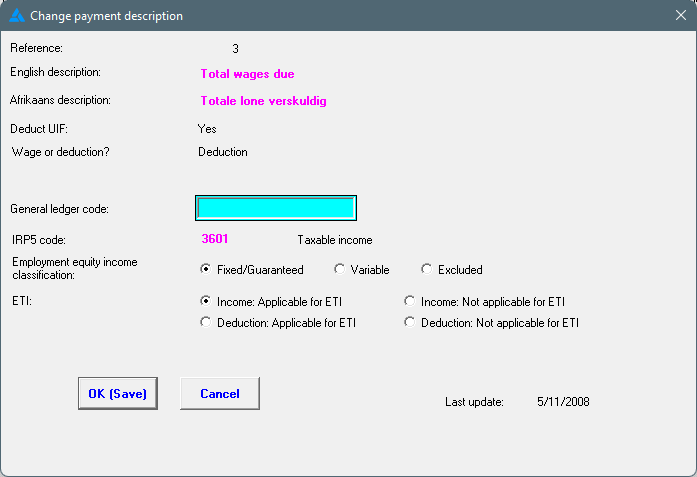
Click here to edit an existing item. Some items can be edited whereas others will ask for a pass code. To get this pass code, you'll have to phone the office and explain what you need to change and why. Only certain fields can be edited.
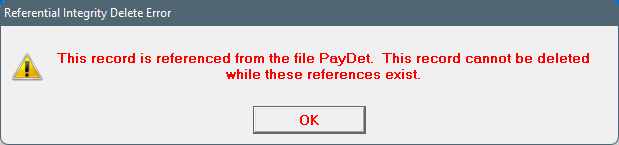
Click here to delete an existing item. Items can only be deleted if it isn't a system generated item or if the item has never been used. If the pay slip item has been used the system will give the following message if you try to delete the item. Rather discontinue the item if you don't want to use it again.
The purpose of the general ledger code is to assist users in allocating costs in their accounting system. Mark the applicable pay slip item and choose 'General ledger code'. Enter the code in the middle of the screen that opened.
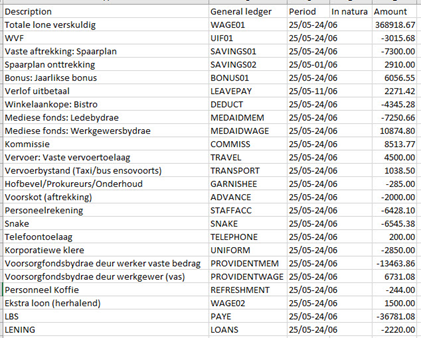
The codes are shown on the 'Pay item totals' printout, when the printout is exported to a CSV in the 'General ledger' field.
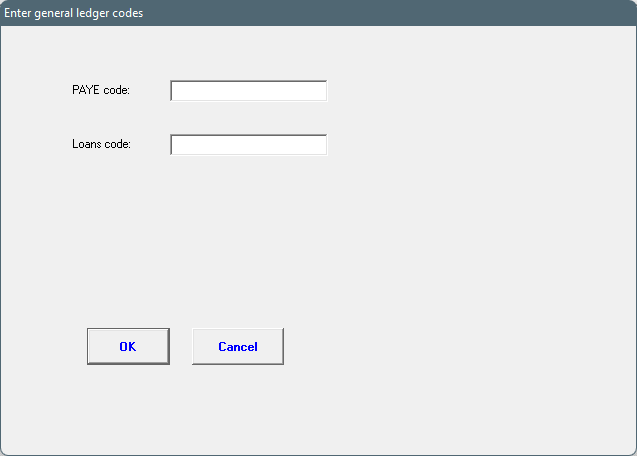
This option works with the general ledger. The general ledger code for pay items 'PAYE' and 'Loans', which aren't found on the list, can be added here.
Discontinue an item if you never want to use it on a pay slip again. It will disappear from the normal pay slip items list. The discontinued items can be seen when marking the 'Show old items' block. The system will automatically add a 'ZZ_' prefix.