TODO: To change the footer's content go to Dr.Explain menu Options : Project Settings : HTML (CHM) Export : Setup HTML Template and Layout
Pay slips: Number order
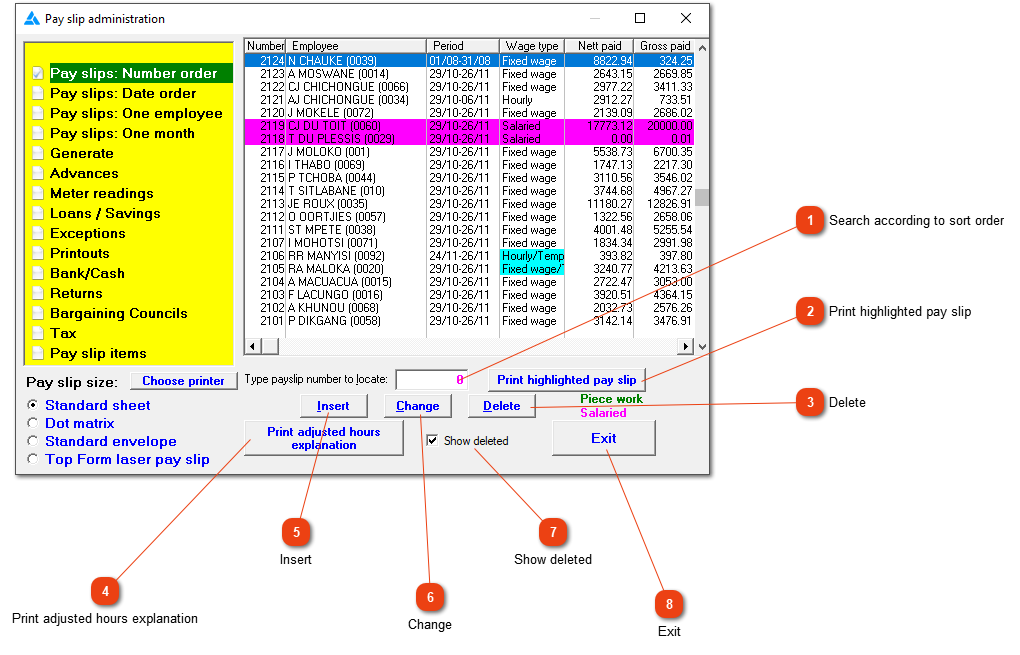
The layout of the different 'Pay slip' screens are basically the same. It only gives different sorting options (number order, date order and one employee).
Search according to sort order
Type the applicable pay slip number in the box. If the sort order is according to date, the newest dates will be shown at the top. If one employee is chosen, the applicable employee must be chosen by clicking on 'Select employee'.
Delete the highlighted pay slip. This will only be allowed if the pay slip is the latest one for the employee and the month has not been closed off yet.
Highlight the pay slip in question (the pay slip will be marked in blue). Click on this button to show the adjusted hours explanation. Here, the system will show why hours are changed on certain days. Changes happen because of certain rules in certain scenarios according to the labour law.
Change the highlighted pay slip. This will only be allowed if the pay slip is the latest one for the employee and the month has not been closed off yet.