Piece worker versus clock/salaried worker
Piece work can be handled in a couple of ways on the system. The employee can be appointed as a 'pure' piece worker or as a clock- or salaried worker and can be compensated for certain piece work on the pay slip by means of a unit based item. There is pros and cons with either set up and it will be clever to phone to discuss the specific scenarios in your case.
|
|
PIECE WORKER
|
CLOCK-/SALARIED WORKER
|
|
Clock
|
Employees can clock for piece work
|
Employees don't clock for piece work
|
|
Leave
|
The system does not calculate leave
|
Leave can be calculated according to leave calculation
|
|
UIF/PAYE
|
The system calculates UIF and PAYE
|
The system calculates UIF and PAYE
|
|
Excel
|
Data can be imported via Excel
|
Data can be imported via Excel
|
|
|
|
|
The creation of an hour-/unit based item is discussed under pay slip items.
Piece work
Phone the office if you want to activate the use of piece work on your system. Piece work is handled through activities and processing of these activities.
Clock-/Salaried worker
CLOCK WORKER:
Employees clock for hours, and is compensated extra using the hour/unit based pay item, for piece work
SALARIED WORKER:
Employees receive a fixed wage or is compensated per hour worked. Hours can be read in on the pay slips. This can be done with the help of
exceptions, instead of doing it one-by-one on the pay slip. The piece work is then added by using the hour/unit based item.
Importing an hour/unit based item from Excel (for clock or salaried employees)
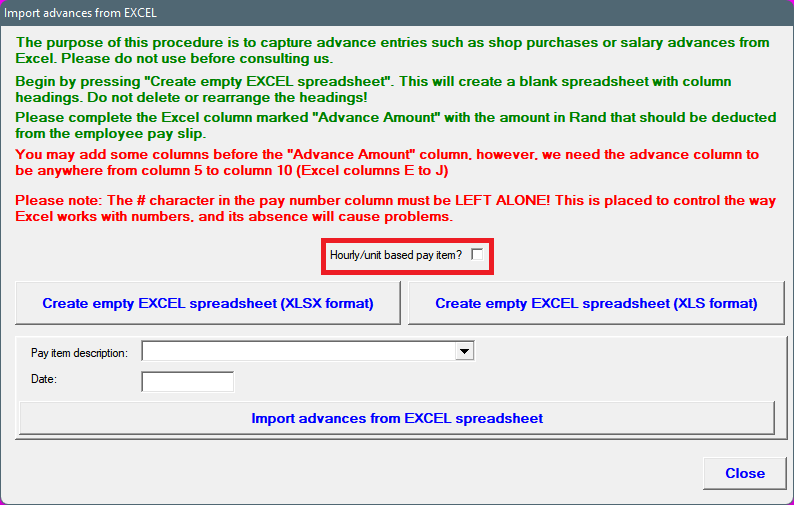
When creating the Excel spreadsheet on the system: Mark the option 'Hour/unit based item?'/Create an empty Excel-file (XLSX-format) or (XLS-foramt):
The created file contains all the necessary information of the employees. The 'Description', 'Number' and 'Tariff' fields can be entered.
Description: This entry can be left open. If you do enter something in this field, that will be shown on the pay slip in the place of the pay slip item wording.
Number: The amount of hours/items the employee must be compensated for.
Tariff: The tariff must be entered here.
Save the file after adding these.
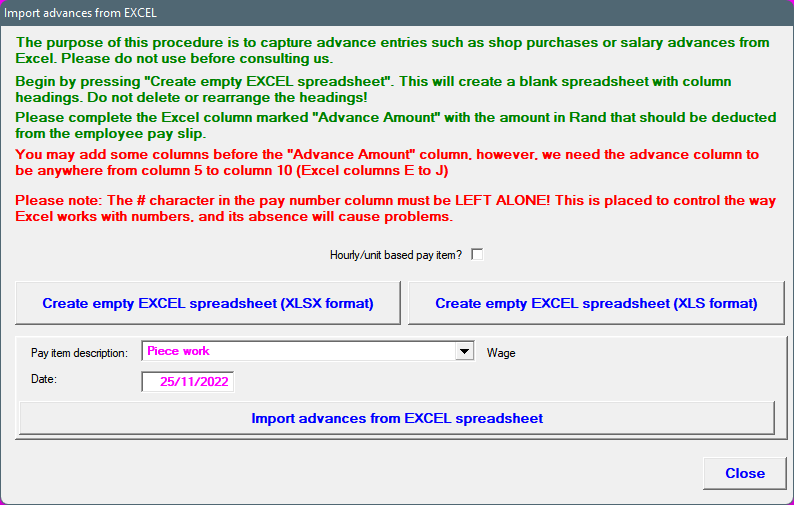
When importing the file the box does not need to be checked again, the programme tests the layout of the file, to ensure it is an hour/unit based item. A fault message will be given if the layout of the file and the pay slip item isn't both an hour/unit based item.
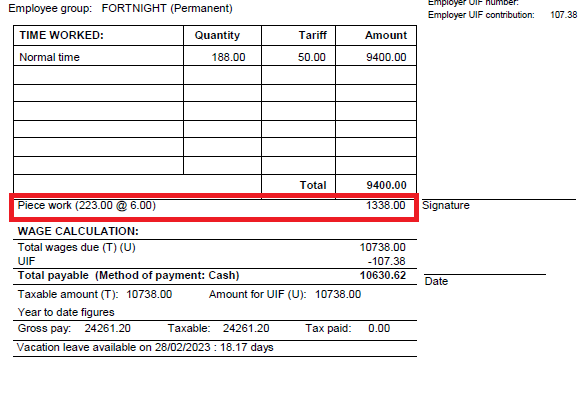
The date must fall within the pay slip period. It is your choice if you want to add the entries daily or if you want to add one for the entire pay period. The example below: The description field was left open an/or the Excel
If you want the days to be shown apart, you HAVE to add a description on the Excel sheet. The system will then add the date as specified when importing the data.