TODO: To change the footer's content go to Dr.Explain menu Options : Project Settings : HTML (CHM) Export : Setup HTML Template and Layout
Remote site administration
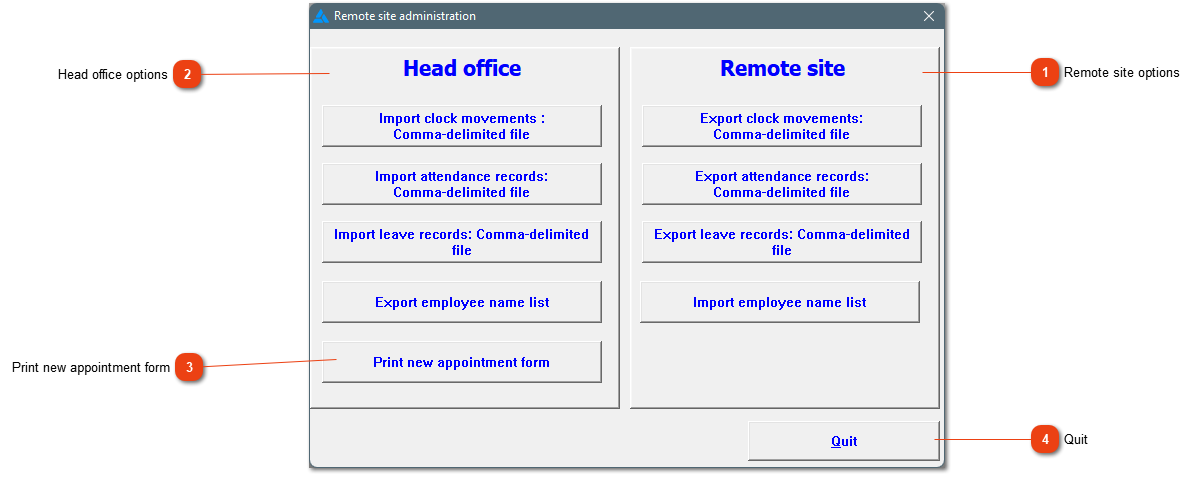
Remote site administration is used when employees work on different sites, which might be far apart, and data is processed on one computer. This process only works with button based clocks. The clock data will be downloaded on the site (remote site) on a computer with the Africlock programme on. This data can then be sent as raw clock movements or as converted clock movements to the head office.
To use this functionality, the requirements are as follows: a computer, a docking station (if using a fixed clock) and internet access (file will be sent with e-mail). A dummy Africlock programme will be downloaded on the remote site. VERY NB: The clock station name must be EXACTLY the same as the clock station at head office.
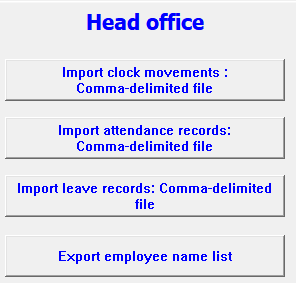
The system creates a file when data is exported; it can be clock movements, attendance records, leave records or employee name lists.
Clock movements, attendance records and leave records should be exported for a specific period. Please ensure that you have the correct dates.
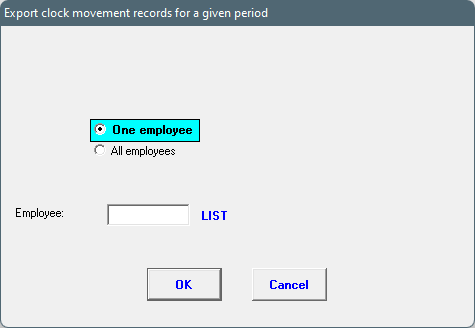
The export can be created for one or all employees. Choose the appropriate option.
If all employees have been chosen, the export can be filtered by choosing one employee group, team and/or company. If you've chosen one employee, the employee can be chosen from the list.
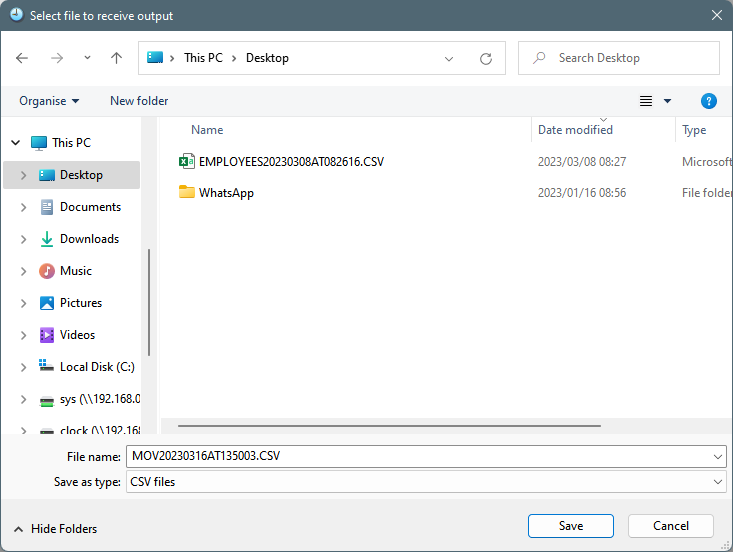
Choose where to store the file. Do not change the name of the file.
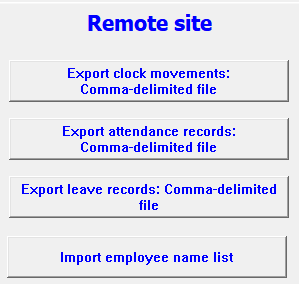
Remote site options
1. Raw clock data can be sent if 'export clock movements' have been chosen. This will only send RAW clock data. With this option, the site computer doesn't need to have employees on their data set. Data is downloaded at step 1.
2. If the remote site must export attendance records, the data must be converted first. Step 1 and step 2 must be done before choosing 'Export attendance records'.
3. If the remote site is responsible for leave on the system, this can be sent to the head office by means of 'Export leave records'.
4. The employee name list can be imported if the head office has sent this file. The employees must be loaded on the remote dataset in the case where the remote site must convert movements and capture leave records.
The button reader must be connected before this link can be used. The idea is to have an appointment form, with a button, ready on the site when a new employee is appointed. This will make the process easier to load new employees. The button is given to a new employee with the appointment form. The appointment form will then be sent to the head office and the information can be added on their dataset.
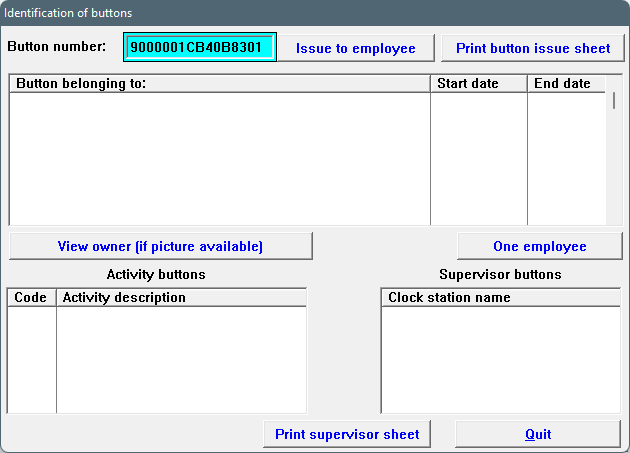
1. After the button number was read, the following screen will identify the button. On this screen you'll be able to determine if the button is allocated to someone/something at the moment. If this is the case, the button allocation should be ended first before it will be available for use.
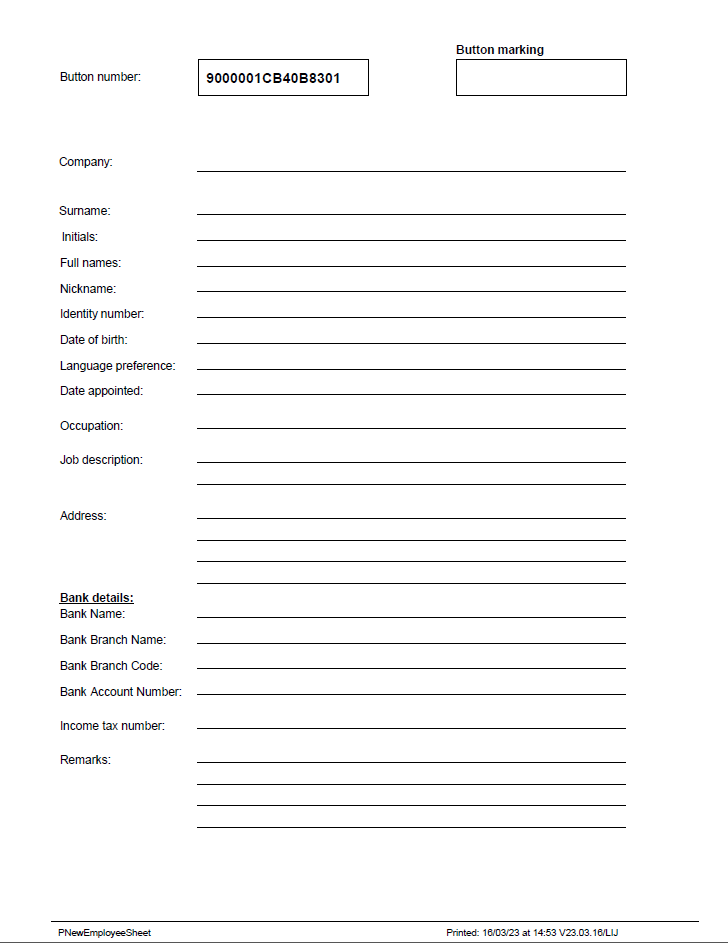
After the screen is closed (click on 'Quit'), the following form will be created. Print this form and keep the button and the form together, in an envelope/bag etc. This form and button will then be delivered and can be given to a new employee. The completed form will be sent to the head office. Head office will have enough information to create a profile for the employee, and the button number will also be available on the head office dataset.