To properly display this page you need a browser with JavaScript support.
Employee totals: Table format
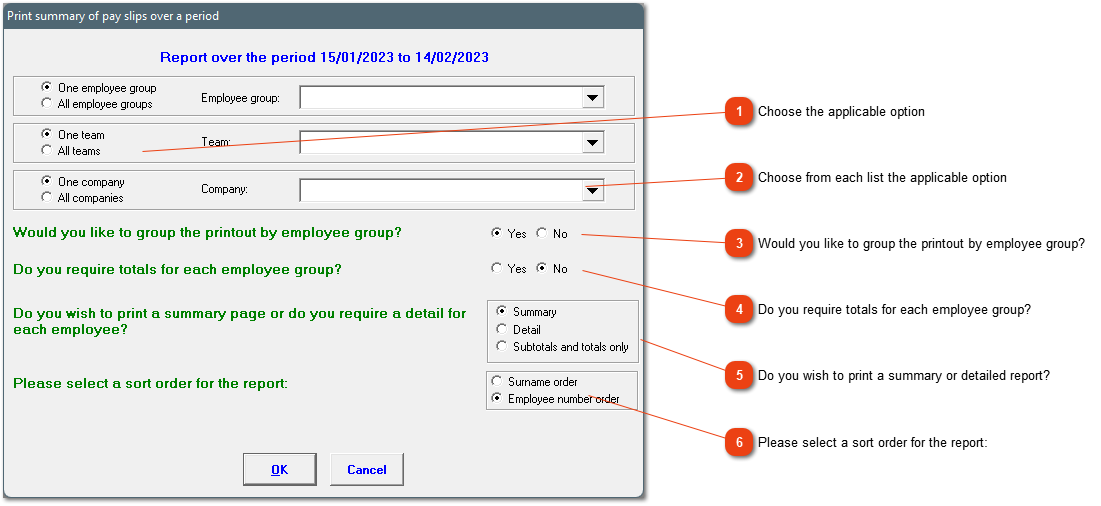
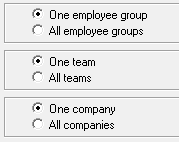
Choose the applicable option
The report can be filtered according to employee group, team and/or company.
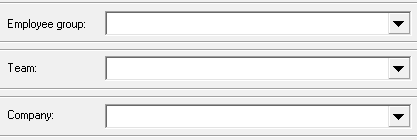
Choose from each list the applicable option
If you've chosen one employee group, team or company, the applicable group, team and/or company must be chosen out of the list.
Would you like to group the printout by employee group?
The report can be grouped by employee group. This is handy if the report is printed for everyone but you want to have the groups together.
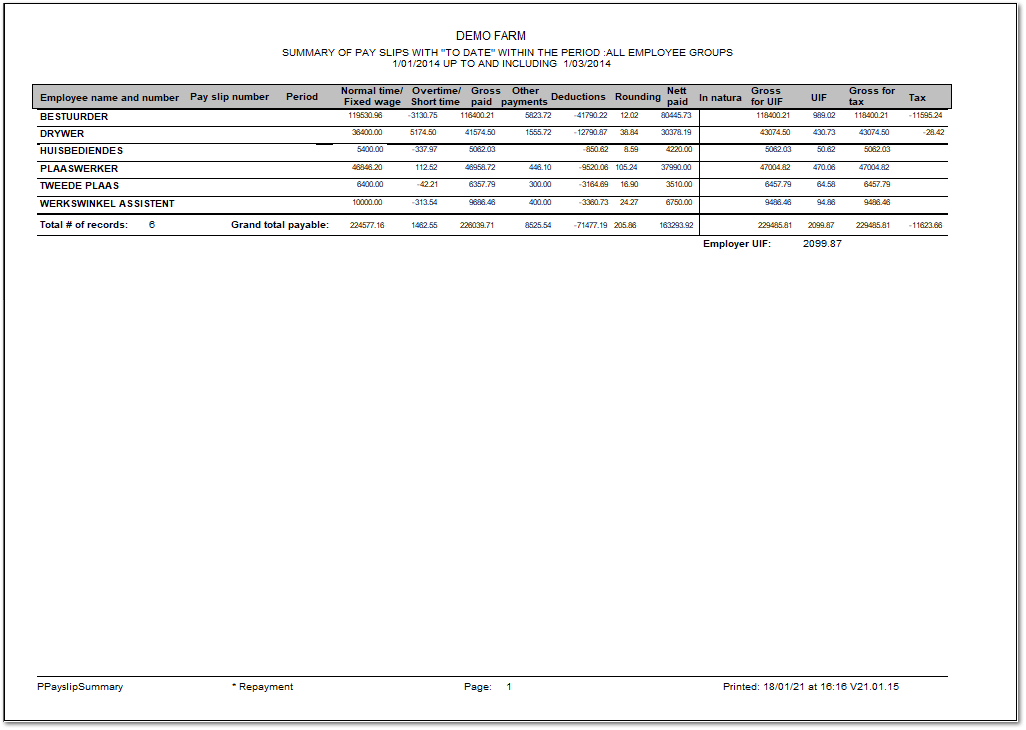
Do you require totals for each employee group?
This will give a sum total of each group's totals.
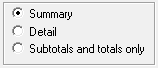
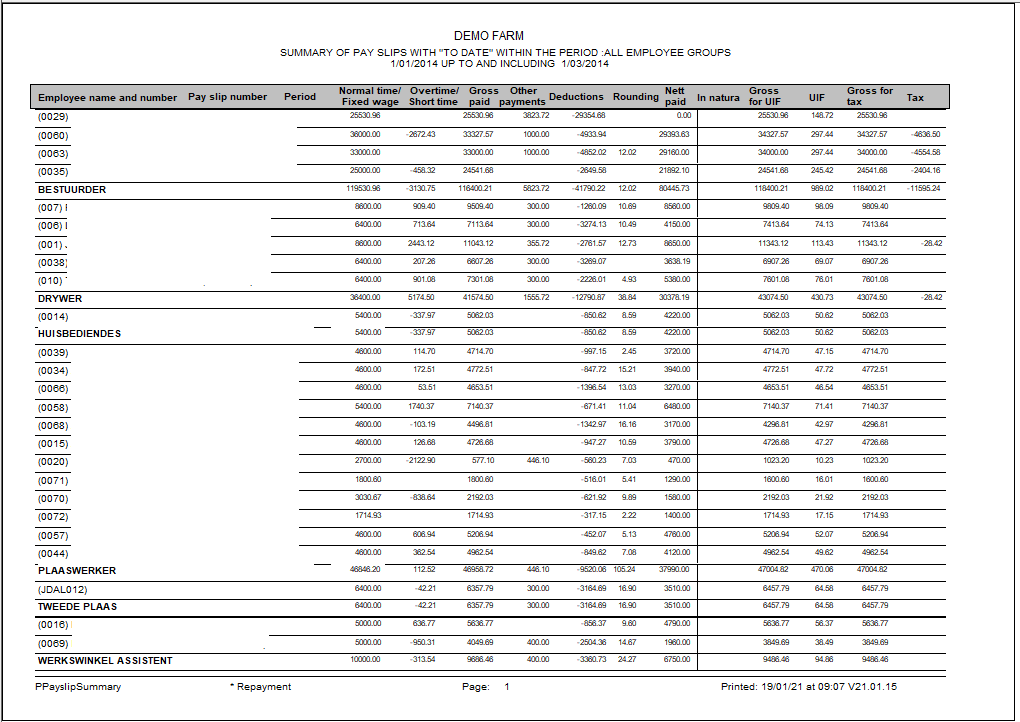
Do you wish to print a summary or detailed report?
If the period is longer than one pay period, the summary will show the sum total of all pay slips for the employee, the detailed report will show each pay slip separately. The subtotals and totals will only show the sum total for each employee group.
Please select a sort order for the report:
You can decide if the report should be sorted according to surname or employee number order.
Employee totals: Table format (detail/summary)
Excel export
Employee totals: Table format - Subtotals and totals only