Africlock Manual
Menu

Print employee list

Print employee list
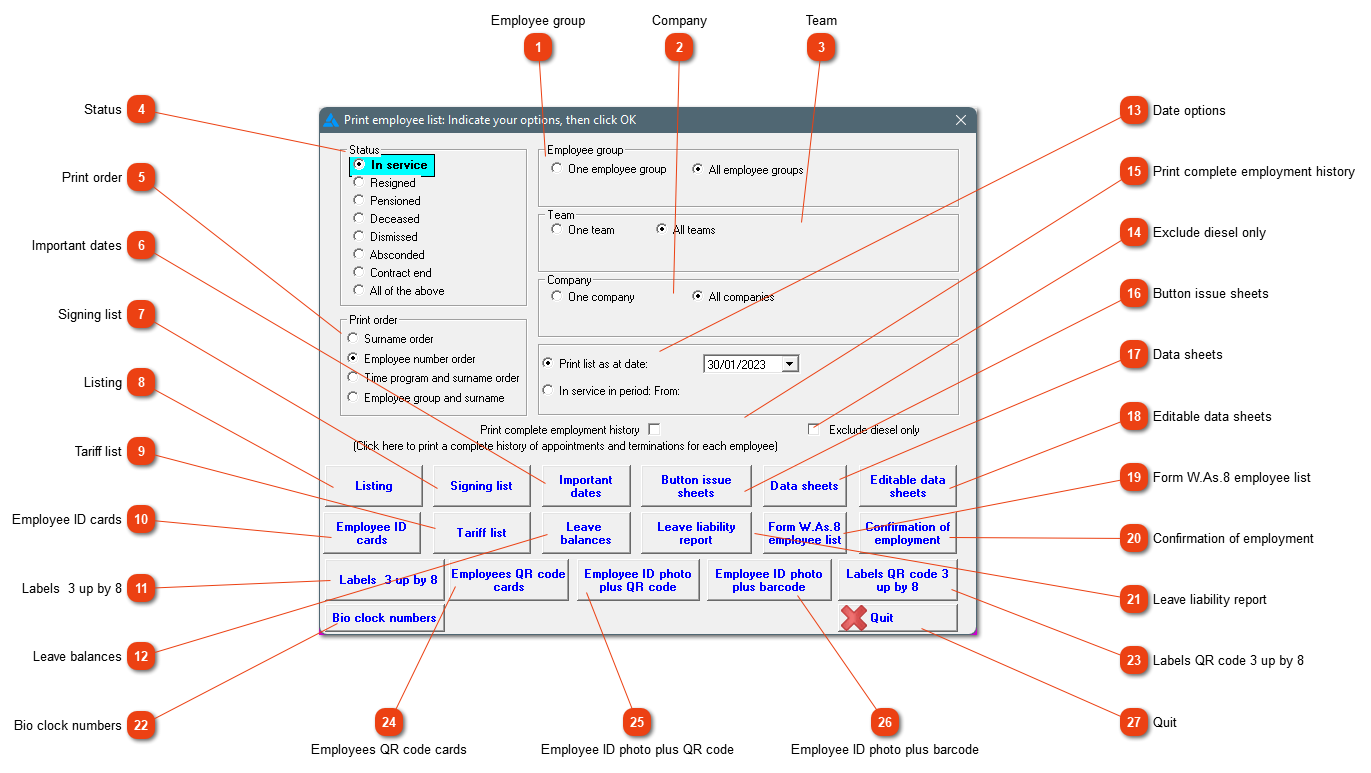
This window lets you print an employee list in several formats using different selection criteria. You may, for example, need all employees dismissed up to 31/12/2006 from employee group Dairy at company XYZ to be listed in employee number order. Remember that the report shows the personnel situation as at the date selected; any personnel changes after that date will not be reflected.
11. Employee group
Indicate whether the system must process one employee group only (e.g. Dairy), or all employee groups. If you choose 'One employee group', select the group from the list.
22. Company
Indicate whether the system must process one company only, or all companies. If you choose 'One company', select the company from the list.
33. Team
Indicate whether the system must process one team only, or all teams. If you choose 'One team', select the team from the list.
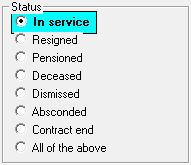
44. Status
You can limit the report to specific categories of employees e.g only those who have absconded up to and including the date selected.
 
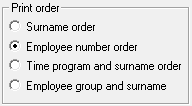
55. Print order
Select the order in which the report entries should appear.
66. Important dates
Generates a printout with the following columns:
When the file is exported to a CSV, extra information can be found:
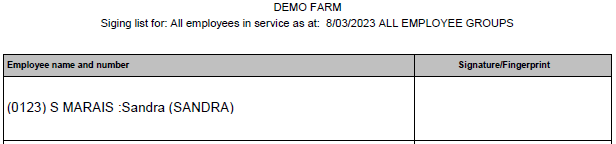
77. Signing list
Print a signing list.
88. Listing
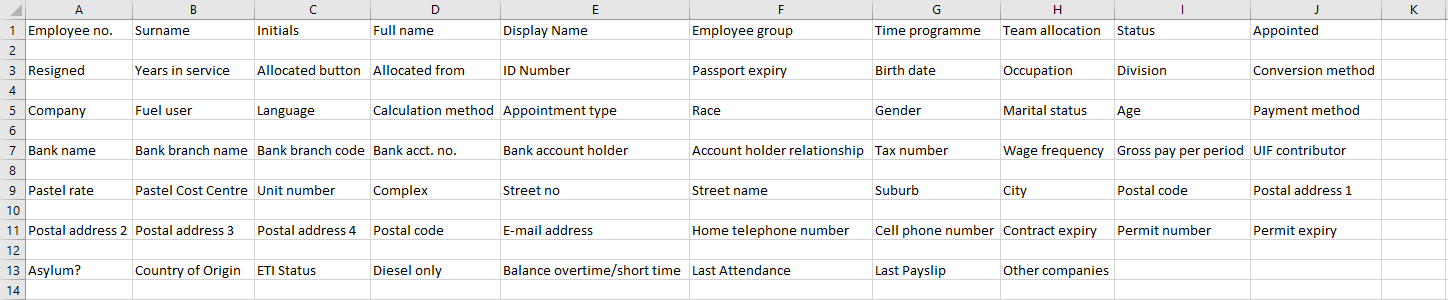
Generate a printout of staff members under the following columns: Employee number and name; Working group; Time program; Status; Allocated button; ID number; Job title.
This list can be exported to Excel where more information will be shown:
99. Tariff list
This selection will provide details of wage frequencies and gross pay per pay period.
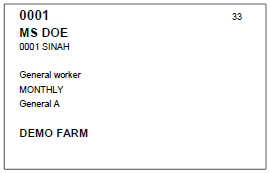
1010. Employee ID cards
Print employee cards with information from the system: Name, surname, ID number, job occupation, employee group, team, button number and company.
1111.   Labels  3 up by 8
Print labels bearing each worker's number, surname and first names, employment status and button number (for use on payroll envelopes).
Example: 3 across, 1 down.
1212. Leave balances
Print the employees' leave balances. If this button isn't available, your leave balances are most likely not activated. Phone the office if you would like to activate this. You have to use the pay slip module to see the leave balances.
13

Date options

13. Date options
Option 1: The effective date of the report. Any staff changes that occurred after that date will be ignored.
Option 2: Select a period for which the report should be drawn.
1414. Exclude diesel only
Check this block if you want employees excluded from the report if they are only on the system as a fuel user.
1515. Print complete employment history
If you set this option (click with the mouse), the complete service history of each worker that appears in the report will also be printed. This only applies when you request the default printout (the 'List' button)
1616. Button issue sheets
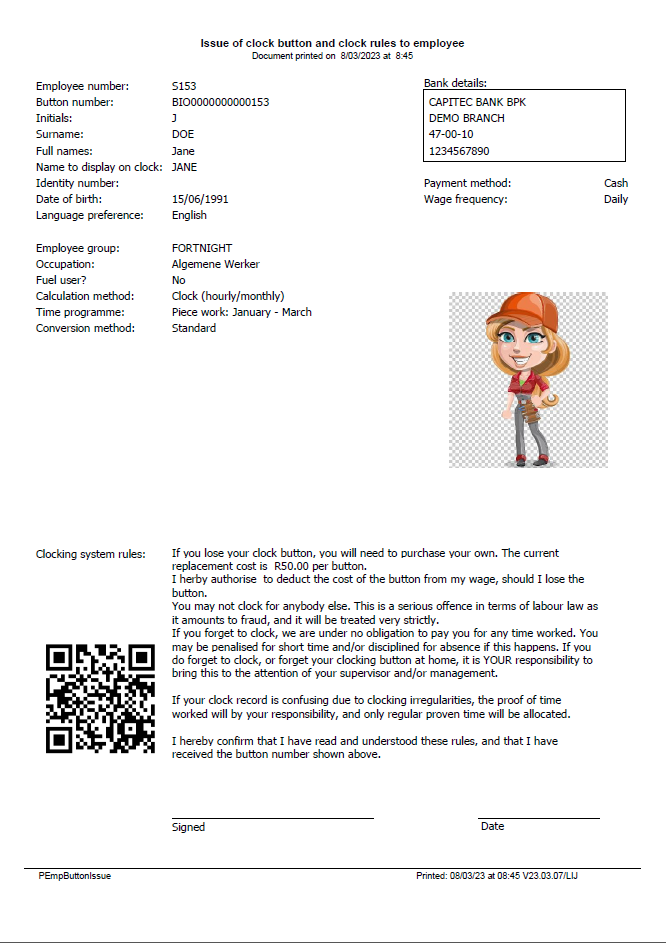
Each button issued to an employee is accompanied by an issue sheet. This page contains the employee's personal details, bank and other information, button number and rules for using the clock. The employee must test the accuracy of the information and acknowledge receipt of the button by signing and returning the sheet.
1717. Data sheets
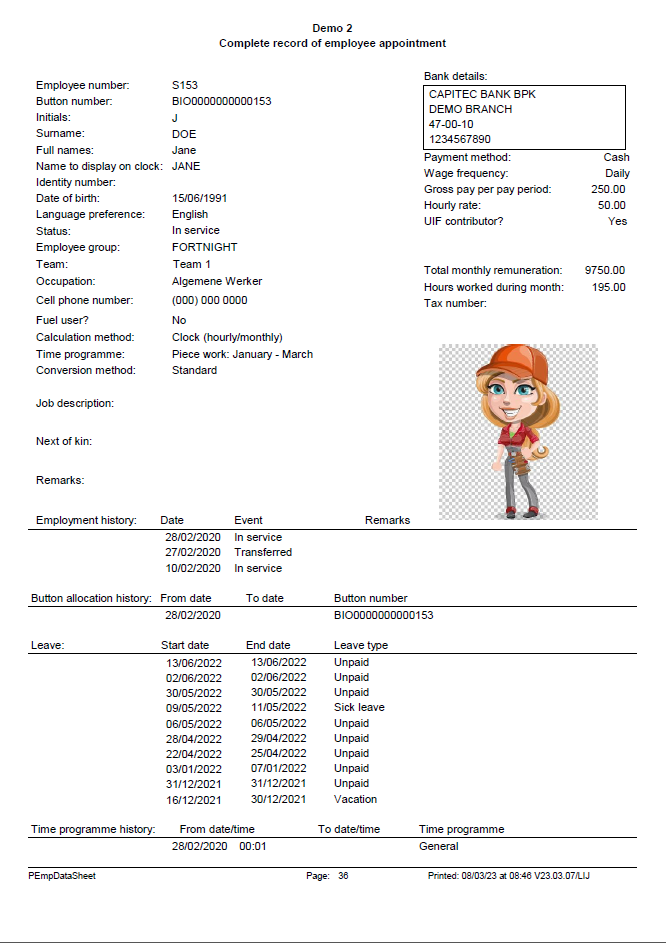
This will provide extensive information about each employee but can take a long time to produce if you have many employees. This can also be found under Personnel/Change/Print employee details.
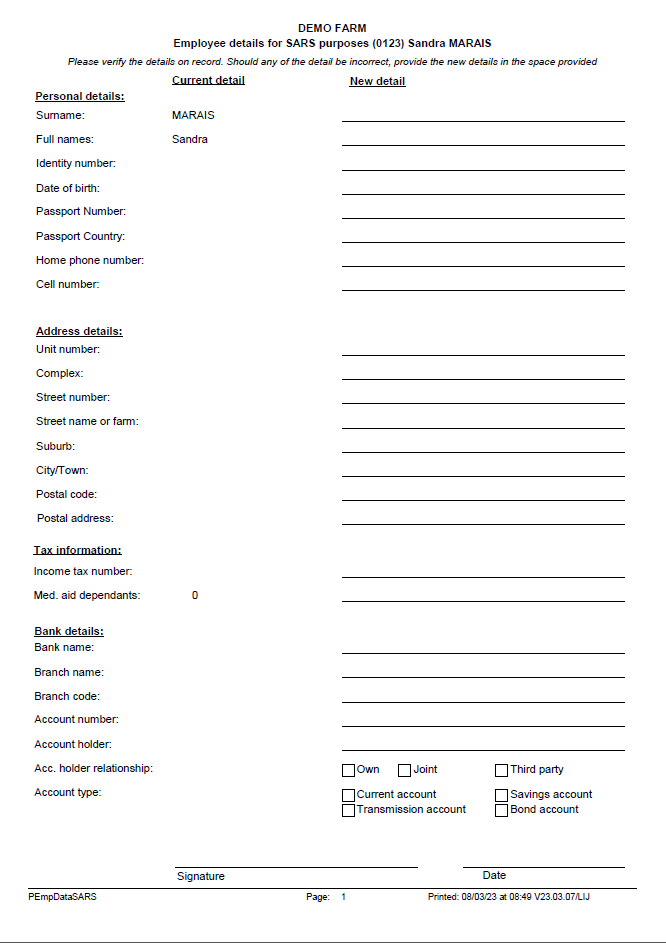
1818. Editable data sheets
Print a sheet where employees can add their details for SARS purposes.
1919. Form W.As.8 employee list
Print a list of employees for a specific company, who was employed within the specified tax year, directors and CC members excluded.
2020. Confirmation of employment
A printout that was used during the national lockdown for essential workers.
2121. Leave liability report
Rand value of leave available on a specific date. The report is a current report, and doesn't take into account leave calculations based on 1 day/hour for every 17 days/hours worked.
2222. Bio clock numbers
A printout with employee information (as seen below) and their bio clock numbers.
 
2323. Labels QR code 3 up by 8
Print labels as mentioned in number 11 (above) with a QR code. The QR codes is used with the Android App.
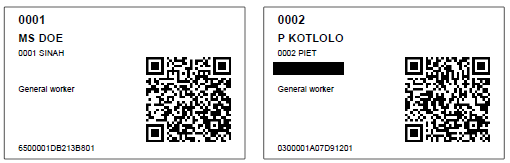
2424. Employees QR code cards
Print employee cards with the employee's employee number, initials and surname, nickname, ID, job occupation, button number and QR code.
2525. Employee ID photo plus QR code
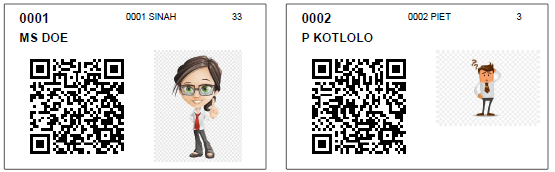
Print employee cards with the employee's employee number, initials and surname, nickname, QR code and ID photo. The photo can be captured here.
2626. Employee ID photo plus barcode
Print employee cards with the employee's employee number, initials and surname, nickname, bar code and ID photo.
2727. Quit
Close the window.
 
The online help was made with Dr.Explain