TODO: To change the footer's content go to Dr.Explain menu Options : Project Settings : HTML (CHM) Export : Setup HTML Template and Layout
1. Personal details
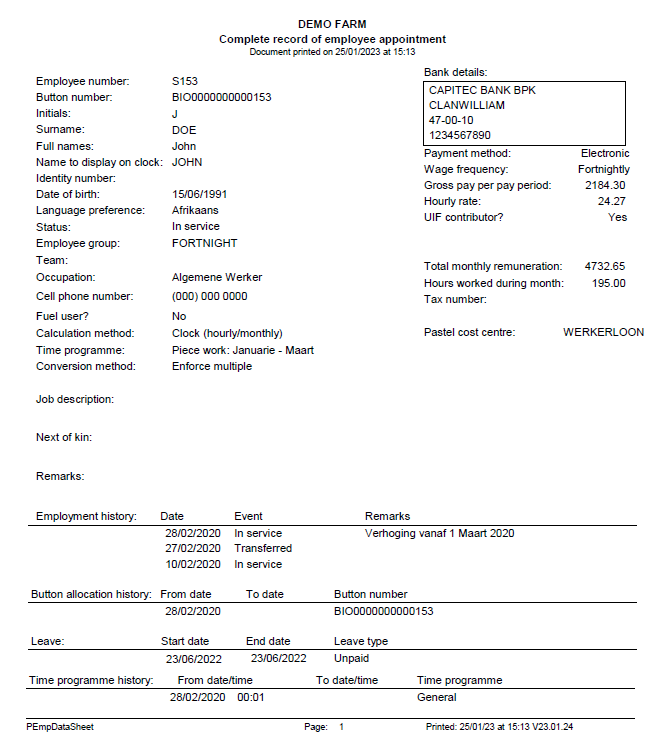
Employee number
There is two options with employee numbers. It can be system generated (only numerical), or it can be user generated (numerical or alpha numerical). This setting can be adjusted here.
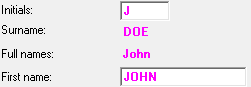
After the employee's ID, name and surname have been captured, those fields will be locked. If there is a mistake in one of these fields, click on 'Fix spelling'. This will unlock these fields and the mistake can be corrected. Do NOT unlock the fields and add a new employee's data overriding the old employee.
Enter the employee's correct ID number. The system will test automatically if the ID is valid. If it is a foreign worker (marked as such under nationality), the passport number can be entered in this field (Please note: The system does NOT test the validity of the passport).
In which employee group should this employee be grouped. If the employee group isn't in the list, it should be created. Tables/Master tables/Employee groups
This list should be created as you go along. Just start typing in the field with the correct occupation wording. This will now be available on the list.