TODO: To change the footer's content go to Dr.Explain menu Options : Project Settings : HTML (CHM) Export : Setup HTML Template and Layout
2. Clocking
Data with regards to the use of clocking/diesel systems and how the software should handle raw data when converting. Should hours be balanced? Should the employee be a fuel user when the diesel programme is also used.
Button number
If a button is allocated to the employee, whether it is on the clock or diesel programme, it will be shown here. This also includes the biometric numbers. This is a closed field which cannot be changed. If the button number is incorrect, it should be rectified here.
The name that will be shown on the clock machine (button based clocks) or the diesel controller can be changed here. Please remember to 'Export names to clock' if any changes has been made.
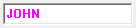
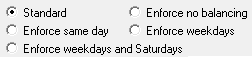
How should the system convert the raw clock data for this specific employee? By default, it will be marked as 'Standard', and will use the setting as defined on the company or employee group.
Enforce discard: Salaried employees' conversion method will usually be set on this, because attendance records aren't needed to create pay slips. If this option is marked, the system will discard all the clock movements. You will still be able to print clock cards.
The rest of these methods have already been discussed.
There is a smartphone app available which can be used as a clock. On the main screen there is a block that will give more information on this functionality.
Is this employee on the system only for the sake of the diesel system, or do you need time sheets and/or create pay slips for the employee? If it is only for the sake of diesel, then check this block. This will exclude the employee from the time and attendance as well as pay slip printouts.
The employee's bio clock number will be shown here. If this is the wrong bio clock number, it can be changed by clicking on the button. It can also be changed here and here.