Africlock Manual
Menu

Re-employ a previous employee

There are several ways how to reinstate an employee on the system. One of the methods is described here. On the next page another method is described.
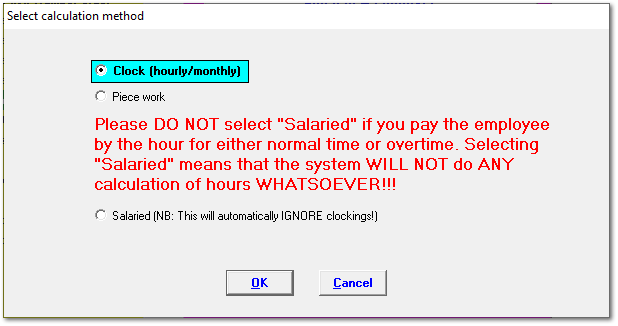
Every time an employee is re-employed for a new employment term, a wage calculation method must be chosen. Choices are between clock, piece and salaried workers.
Re-employ a previous employee
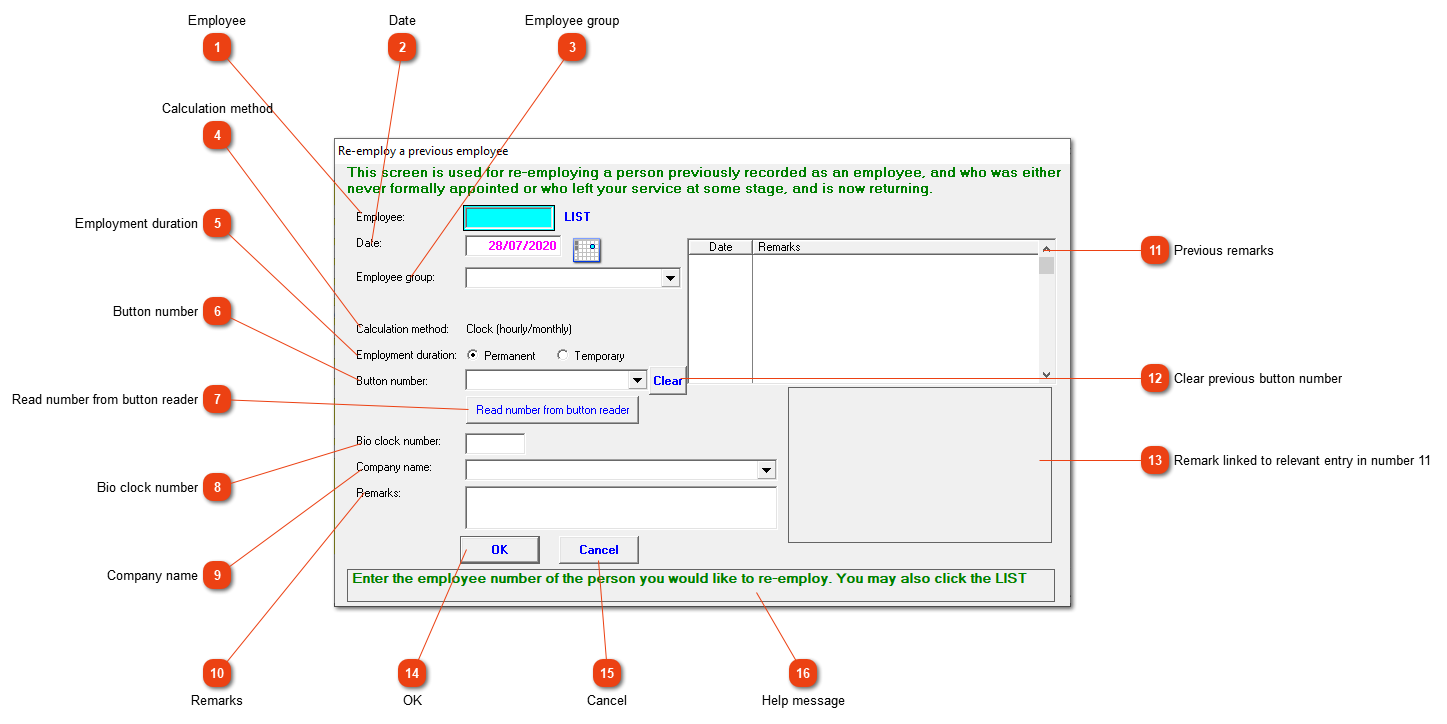
This window lets you record the re-employment of a previous employee.
1

Employee

1. Employee
Enter the employee number (or use the 'List' button to select the employee from the list - choose 'show previous').
2

Date

2. Date
The date on which the employee began working for you again.
3

Employee group

3. Employee group
Choose the appropriate employee group.
4

Calculation method

4. Calculation method
This indicates whether the employee will be paid according to hours clocked or piece work completed or by means of a fixed salary.
5

Employment duration

5. Employment duration
Indicate whether this is a permanent or temporary appointment.
6

Button number

6. Button number
Select the button which is to be assigned to the employee.
77. Read number from button reader
If you have purchased the optional button reader, you can use it to identify the button and display the number in the 'Button number' field.
8

Bio clock number

8. Bio clock number
If the employee will use a biometric clock, the number as registered on the clock should be entered here.
9

Company name

9. Company name
The name of the company where the employee is employed.
10

Remarks

10. Remarks
You can make whatever notes you think necessary for future reference here.
11

Previous remarks

11. Previous remarks
Previous appointments and terminations will be shown in this block. If you want to see the specific remark for one of the entries, it will be shown at number 13.
12

Clear previous button number

12. Clear previous button number
An easy way to clear the button number if the employee is getting a new button. If the employee still has his previous button, it will be correct.
13

Remark linked to relevant entry in number 11

13. Remark linked to relevant entry in number 11
The reason for the termination of services will be shown here. If a previous remark contains an exclamation mark (!), the system will not appoint the employee again. This should be changed first to try again.
1414. OK
Save the values currently displayed.
1515. Cancel
Close the window without saving anything.
 
16

Help message

16. Help message
This is a help area with context sensitive messages to assist you in completing the form.
 
The online help was made with Dr.Explain