If the employee's last day does not correspond with the last day of the pay period, his/her pay slip must be created separately.
1. SALARIED WORKER:
Option 3: Fix employee / Pay slips /
Insert
2. CLOCK WORKER
Option 1: Download the clock data.
Option 2: Download the clock data
Follow the normal steps. Please note, all the employees' data will be converted so if time is a factor, option 1 will be better.
Everything must be settled on the last pay slip:
1. Savings plan
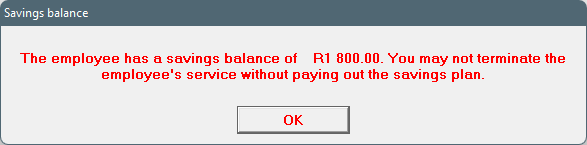
The employee's savings plan must be paid out before his/her services can be terminated. The system will stop you with the following message:
If an employee's savings plan has already been paid out, but for one or another reason it hasn't been noted on the system, an
interim savings plan transaction must be done BEFORE the pay slip is generated. Delete the pay slip if you've generated it already.
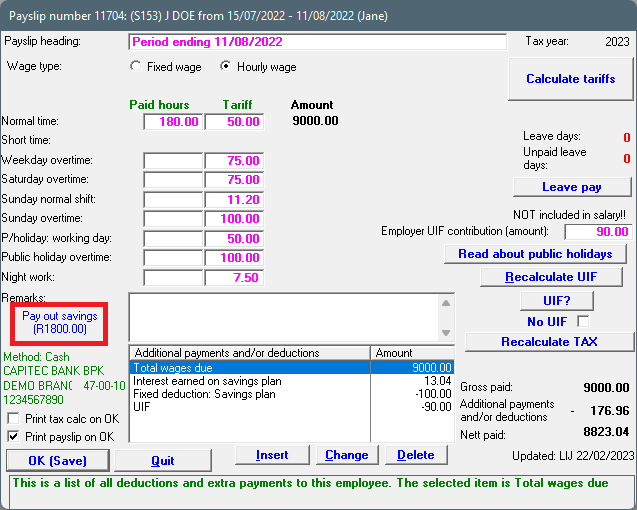
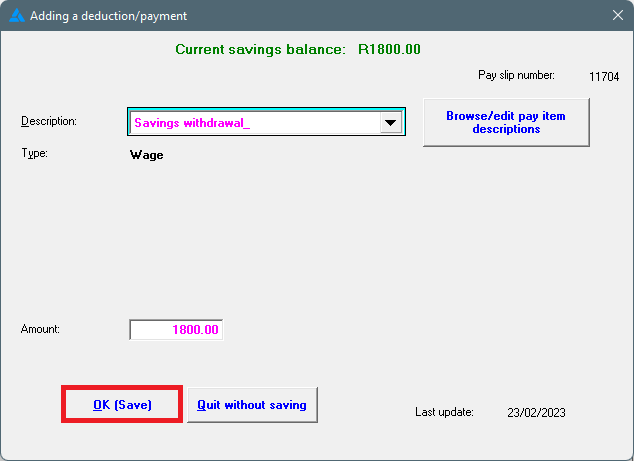
The right pay slip item with the full amount will already be selected if you pay out the savings on the pay slip. Confirm the transaction by clicking on 'OK (save)'.
The savings plan will now be paid out on the pay slip.
2. Loan
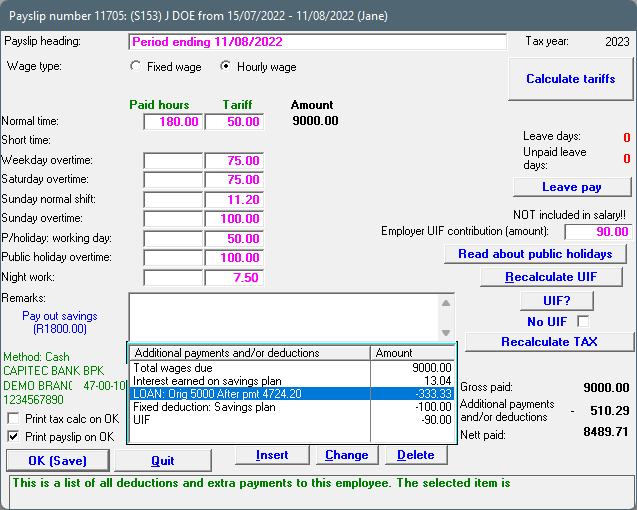
The system will not force you to finalize a loan. The employer must decide what will happen with the loan. There are 3 options on Africlock:
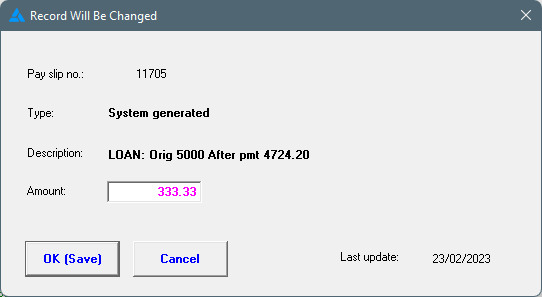
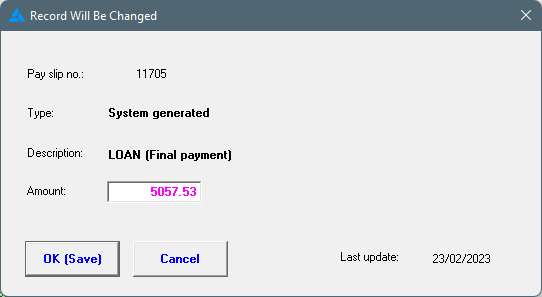
The first option is on the loan entry on the pay slip. When you open this item, it can be edited - the amount can be changed.
Change the amount to the amount still outstanding. If the full outstanding amount is added, the description will change to LOAN (Final payment).
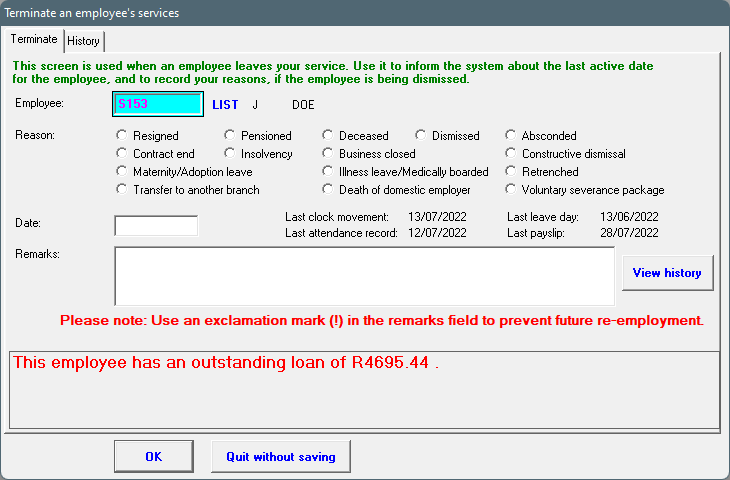
If you try to terminate an employee's services with an outstanding loan, the system will give a warning on the termination screen.
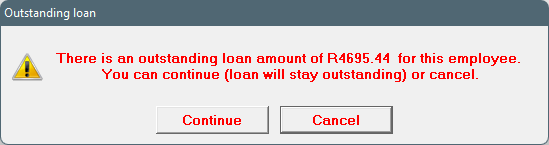
The system will give you two options when clicking on OK:
1. Keep the loan on the employee's name. This can be done for seasonal workers, or someone that you know will come back to continue repaying the loan. Select: 'Continue'.
2. Write off the loan. Select 'Cancel'. You'll need to go to loans to write it off, before terminating the employee's services.
3. Leave
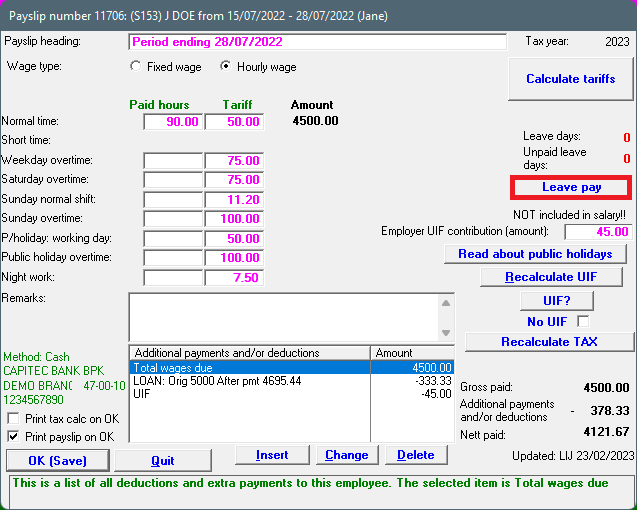
Leave, as calculated by the system, if leave balances are activated, can be paid out on the pay slip, and the employee's services can be terminated directly. If you do not have the option on the pay slip, it means your leave balances haven't been activated. Then you'll have to manually calculate what the employee should get for leave money and end the employee's services under employment history. This is all discussed below.
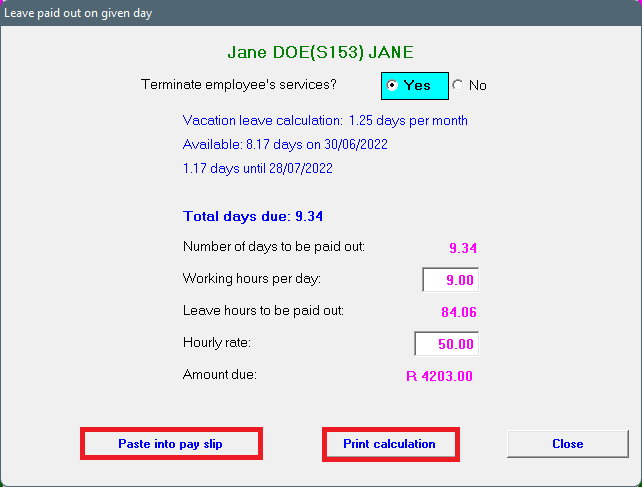
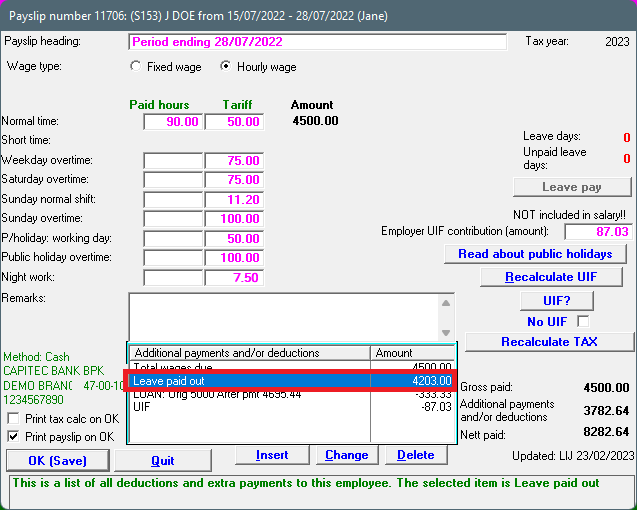
When the 'Leave pay' option is chosen, the following screen will be opened. Choose the applicable option, 'Yes' in this scenario. The system will then shown the outstanding leave. This screen is the ONLY place where you can print the leave calculation. After you've printed the calculation, you can paste it unto the pay slip.
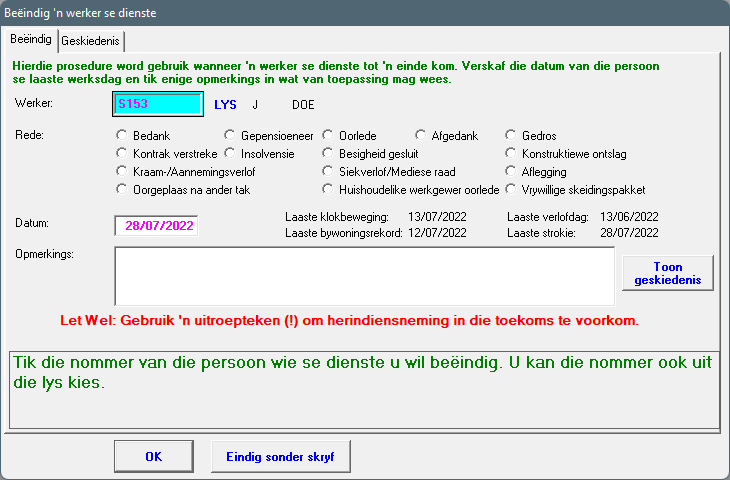
After the pay slip has been printed, the following screen will be opened. Choose the applicable reason. The last attendance record and leave day can NOT be later than the pay slip date. The termination date should be the same as the date of the last pay slip.
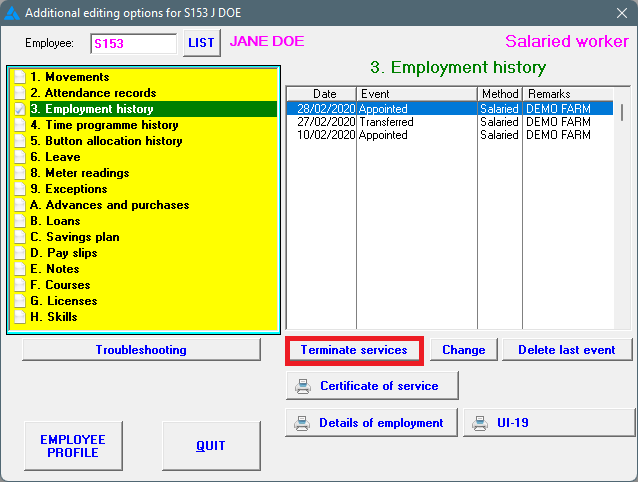
If you're leave balances aren't active or you're not paying out leave on the last pay slip, the same service termination screen can be accessed from Fix employee / Employment history: