TODO: To change the footer's content go to Dr.Explain menu Options : Project Settings : HTML (CHM) Export : Setup HTML Template and Layout
Pay slip template - piece worker
The heading is automatically written as 'Period ending end date':
or 'Month year': .
The heading can be changed to something else if you would prefer to do this, and will be shown after the colon(:). If you do not want to show the pay slip number on the pay slip, it can be removed under Tables / Pay defaults / Print detail on pay slips / More options / Print pay slip number on pay slip.
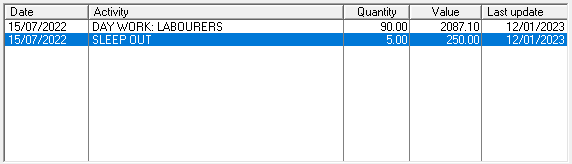
The piece work activities can either be read into the system before the pay slips are generated, OR come from converting clock movements if the system is set up that way, OR they can be added directly to the pay slip itself.
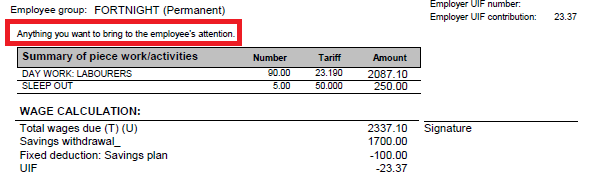
If you want to show the employee something specific, and you want it in writing, it can be entered here. The signature field is also close to the remark, so it is a good place to give certain information.
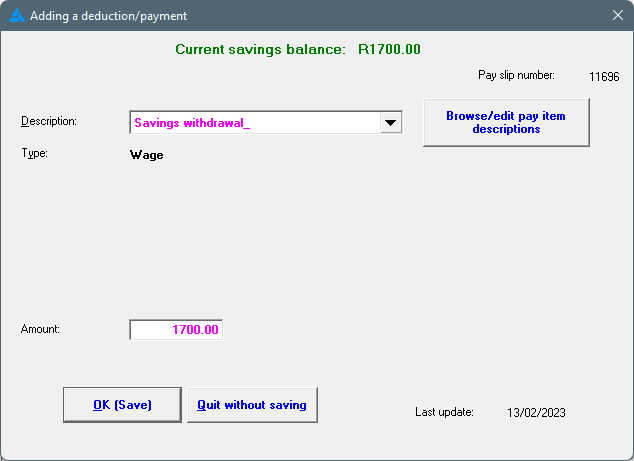
The savings plan must be paid out on the pay slip, unless the employee received cash that should not reflect on the pay slip. If the employee received cash, it should be handled with an interim transaction. If the savings are paid out on the pay slip, the system will use the correct pay slip item automatically and the full amount of the plan will be selected. If the employee should only receive some of the savings plan, the amount can be edited.
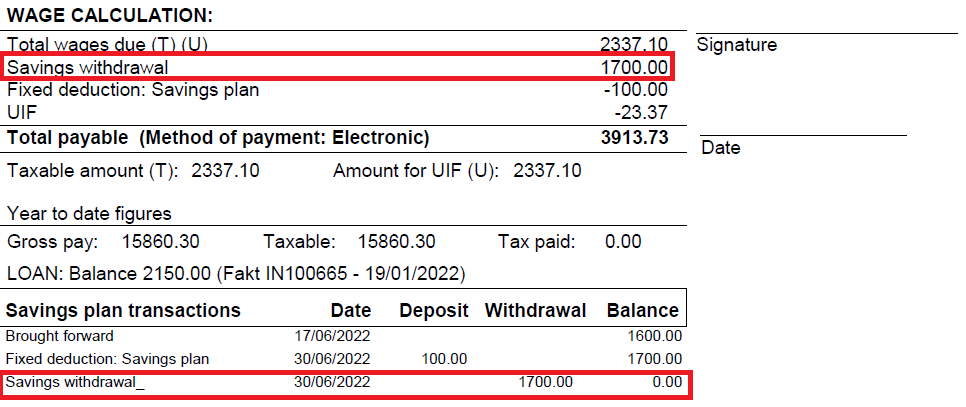
This will then be listed under wage calculation and under savings plan transactions (as a withdrawal) with the current balance.
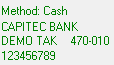
The bank information of the employee will be shown here if it was imported into the system. This will also be printed on the pay slip provided it is set for this and doesn't overlap with other settings.
The specific pay slip can be printed if this box is marked and 'OK (Save and print pay slip)' is clicked. If you do not want to print the pay slip at the moment, click on the box so that it isn't checked, then the pay slip will only be saved.
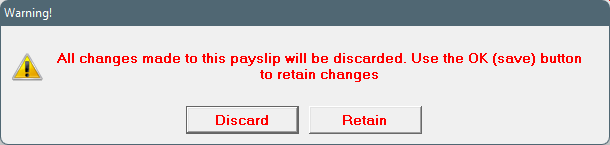
Discard any changes made. The system will give a warning where it will ask you what must happen to the changes. If it should be discarded, choose 'Discard', otherwise choose 'Retain' and then click on OK (Save).
Force the system to recalculate UIF. Sometimes, there is a third decimal that implicates the calculation, and by recalculating it here, the system sorts itself out.
If no UIF should be deducted, this block can be checked. Remember there are legally 3 reasons why one does not deduct UIF. The correct reason can be selected under the employee's personal data.
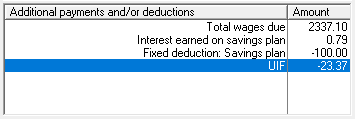
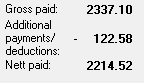
A short summary of the employee's pay slip. The employee's gross salary, with the sum total of additional payments and/or deductions, gives the nett paid that is owed to the employee.



 or 'Month year':
  .
.