TODO: To change the footer's content go to Dr.Explain menu Options : Project Settings : HTML (CHM) Export : Setup HTML Template and Layout
Pay slip template - salaried worker
The heading is automatically written as 'Period ending end date':
or 'Month year': .
The heading can be changed to something else if you would prefer to do this, and will be shown after the colon(:). If you do not want to show the pay slip number on the pay slip, it can be removed under Tables / Pay defaults / Print detail on pay slips / More options / Print pay slip number on pay slip.
Salaried workers can earn an hourly wage or a fixed wage. The system will look at how much hours was in the pay period (hourly) or will give the employee a fixed wage (no matter how many hours worked).
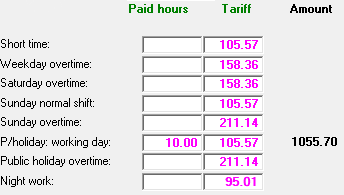
If the employee worked extra hours/overtime for which he needs to receive compensation, it can be added directly unto the pay slip. On an hourly wage slip, one of the fields (normal time) will already be filled in by the system. If you've used exceptions in this period, this will also be in the appropriate fields on the pay slip.
Each item's tariff: The system uses the information it has been given to calculate the tariff (fixed wage and what the average monthly hours are). Do not just change the tariffs. Please phone the office if the tariffs are incorrect. It is usually just a small adjustment that needs to be made for the tariffs to be calculated correctly (it is easier to troubleshoot with teamviewer than to explain each possible scenario).
The system does a simple multiplication sum where the hours are multiplied by the tariff to get an amount for each field.
If you want to show the employee something specific, and you want it in writing, it can be entered here. The signature field is also close to the remark, so it is a good place to give through certain information.
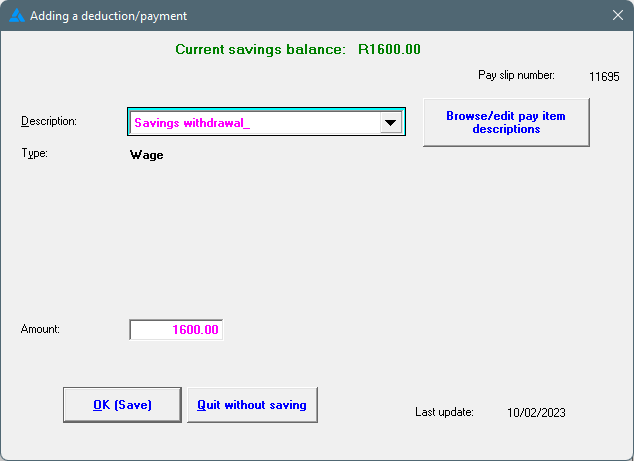
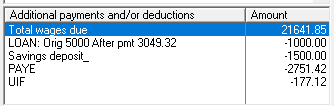
The savings plan must be paid out on the pay slip, unless the employee received cash that should not reflect on the pay slip. If the employee received cash, it should be handled with an interim transaction. If the savings are paid out on the pay slip, the system will use the correct pay slip item automatically and the full amount of the plan will be selected. If the employee should only receive some of the savings, the amount can be edited.
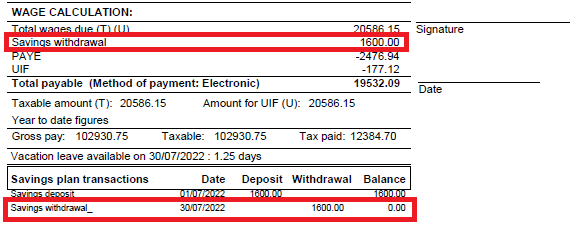
This will then be listed under wage calculation and under savings plan transactions (as a withdrawal) with the current balance is.
The bank information of the employee will be shown here if it was imported into the system. This will also be printed on the pay slip provided it is set like this and doesn't overlap with other settings.
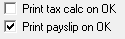
The pay slip or the tax calculation can be printed for a specific employee. Choose the printout you are looking for, check the correct box and click on OK.
The tax calculation printout is a report with the employee's income, deductions and tax up to this point and it explains why the PAYE is what it is.
The pay slip can be printed at a later stage as well.
If the employee's tariff changes, use the 'Calculate tariffs' option. The system will then adjust all the amounts: overtime, Sunday time, night work, etc. If you only change one field on the pay slip, there will be no other adjustments made.
If the employee wants to sell leave or when the employee's services are terminated, leave can be paid out here. VERY NB: If the employee goes on leave, DO NOT pay out his/her leave. Add leave under his/her name, and create pay slips for the correct periods.
Force the system to recalculate UIF. Sometimes, there is sometimes a third decimal that implicates the calculation, and by recalculating it here, the system sorts itself out.
If no UIF should be deducted, this block can be checked. Remember there are legally 3 reasons why one does not deduct UIF. The correct reason can be selected under the employee's personal data.
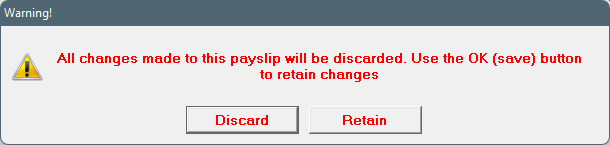
Discard any changes made. The system will give a warning where it will ask you what must happen to the changes. If it should be discarded, choose 'Discard', otherwise choose 'Retain' and then click on OK (Save).
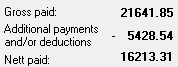
A short summary of the employee's pay slip. The employee's gross salary, with the sum total of additional payments and/or deductions, gives the nett paid that is owed to the employee.


 or 'Month year':
  .
.