TODO: To change the footer's content go to Dr.Explain menu Options : Project Settings : HTML (CHM) Export : Setup HTML Template and Layout
Mass-edit employee data
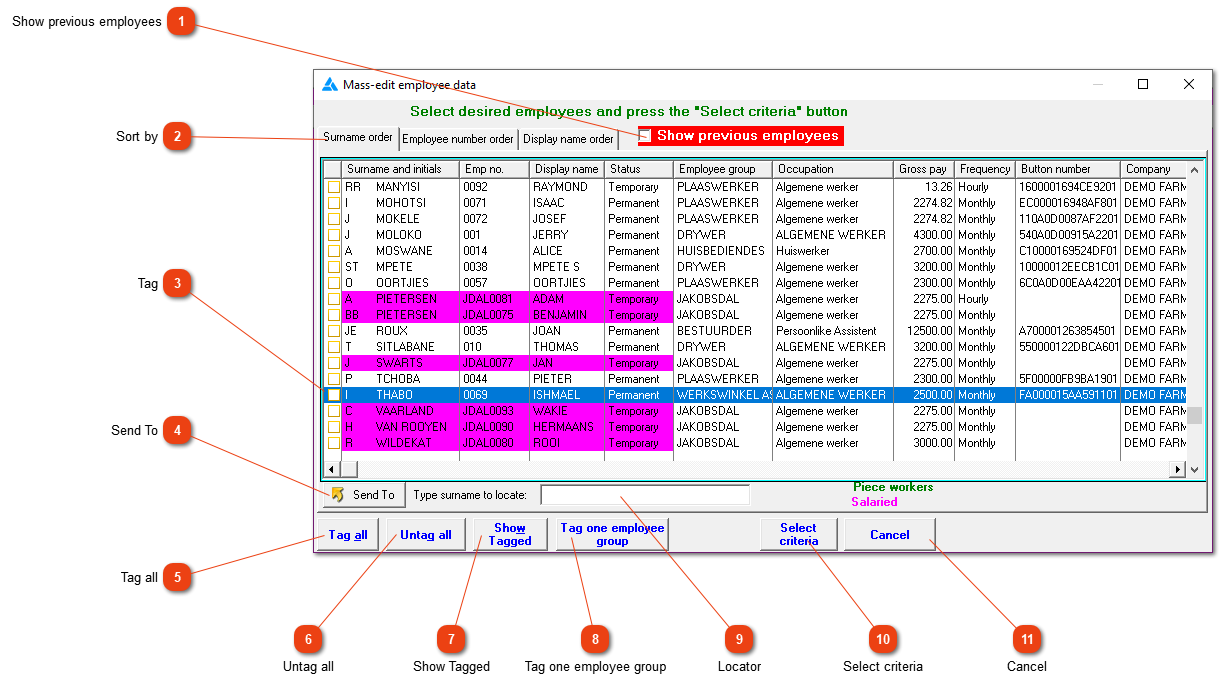
Use this window to make a specific change to any number of personnel records in a single operation. Click the box to the left of a name to select that employee. Click it again to cancel the selection. You can also right click anywhere on the list to obtain a menu providing useful selection options.
Click here to show or hide all employees no longer in your service.
Typing a surname here (or the employee number, depending on the sort order) will make the cursor jump to that employee, or you can use the normal navigation buttons (up, down, page-up and page-down) to find a specific employee.